


 26499
26499
Course Setup: Getting started building your new Canvas course site
Course Setup Basics
-
Use a development site (or "dev site") to build out your course.
This minimizes potentially major issues during course-building and ensures that your students cannot access anything you don't want them to during the course-building process.Note: Development sites are not used to host live courses; students will not be enrolled in them. Rather, development sites are platforms like a "sandbox" for experimenting with Canvas features, course organization, and design.
- We recommend using dev sites as course content repositories so that you just copy your content into the live semester course site each time you teach that same course.
- We also recommend that you import the FSU Course Template before building your course. By doing so, you'll automatically build your course on selected quality standards based on the Quality Matters rubric.
-
Moving content within Canvas: Using the "copy a Canvas course" option is best.
The copy a Canvas course import option allows you to take a whole course, or only specific pieces that you want, from one Canvas course to another. This is great if you want to carefully pick and choose what content you bring from one semester to another, or if you want to bring over all content into your new site. This is also the best way to transfer materials from your development site into your live course site.If you find you need to copy an individual assignment, quiz, discussion item, or content page into your course after copying content from your dev site, it is best to use Canvas's copying feature to import/copy select items. This will allow you to copy the individual item without accidentally copying duplicates. Similarly, you may want to share items with other instructors.
- Create your syllabus.
Add your syllabus content to Simple Syllabus from the left-hand navigation bar or directly using the FSU Simple Syllabus web portal. This assists students by providing access to an up-to-date syllabus during the term and a public-facing copy prior to the term, so they can determine whether the course is suited to their academic requirements and needs. - You must publish your semester course site and every item in it that you want students to access.
It is generally best to publish the individual items and modules on your development site as you build it out. That way, once you have copied your content into the live semester site, all that's needed is to publish the course site itself. We also recommend making sure that all course links, files, videos, and external links you provide in your Canvas course are active and working. - Import the FSU Emergency Module.
The FSU Emergency Module is a critical tool for proactive and reactive emergency course management, usable in both distance-learning and face-to-face courses. We strongly recommend importing the FSU Emergency Module from Canvas Commons into your course sites and development sites. The module will already be published once imported, so it's ready to go for the start of your class. Learn more about the FSU Emergency Module and how to use it. For additional emergency preparedness ideas, see Incorporating emergency preparedness into your course design. - Make an attendance plan if you wish to keep track of it in Canvas.
There are a few different options for taking first-day attendance. The best option for taking attendance in Canvas throughout the semester will depend on your class size. - Communicating with students before classes start
If you want to communicate with your students before the first day of class, use one of the methods recommended in How do I message my students in a course before the semester starts? - Managing a student finishing up an incomplete in Canvas
Review our finishing incompletes in Canvas resource and submit the accompanying manual enrollment form to ensure your student has the course access they need to submit coursework.
Course Design
- Organize your content using Canvas's Modules page.
We recommend adopting these Overall Course Site Design guidelines for organizing your course content. Not only does following these guidelines make your course site accessible to all students, but these guidelines also tend to reduce student confusion, which means fewer administrative emails for you! - Course Files are automatically hidden from student view when your course site is created, and we strongly recommend keeping the course files area unavailable to students. Modules offer a far better way than the unsorted Files page to share files with students because they allow individual files to be shared side-by-side with weblinks, assignments, Canvas content pages, and other items. Modules allow you to group course content according to week, theme, or context.
- Customize/simplify your course navigation menu.
As the instructor, you can view and access all available course navigation links. However, we recommend that you customize the course navigation menu so that any tools you do not use or do not want students to access are hidden from student view. - Keep accessibility in mind while building out your course content.
All FSU courses and their content must be offered in a format that is accessible to all students.We strongly recommend proactively creating your course content to be accessible, rather than making it accessible only after a student registers with the Student Disability Resource Center and requests that the course content be offered in an alternative format. Learn more about our general text recommendations and accessible file formats.
- Use DesignPLUS templates anywhere you use the Rich Content Editor (RCE) in Canvas.
DesignPLUS templates are accessible and will make it much easier both to create visually appealing, mobile-friendly content and verify that your Canvas content is accessible.The screenshots below provide examples of how DesignPLUS templates can be used in Canvas.
- Module Overview:
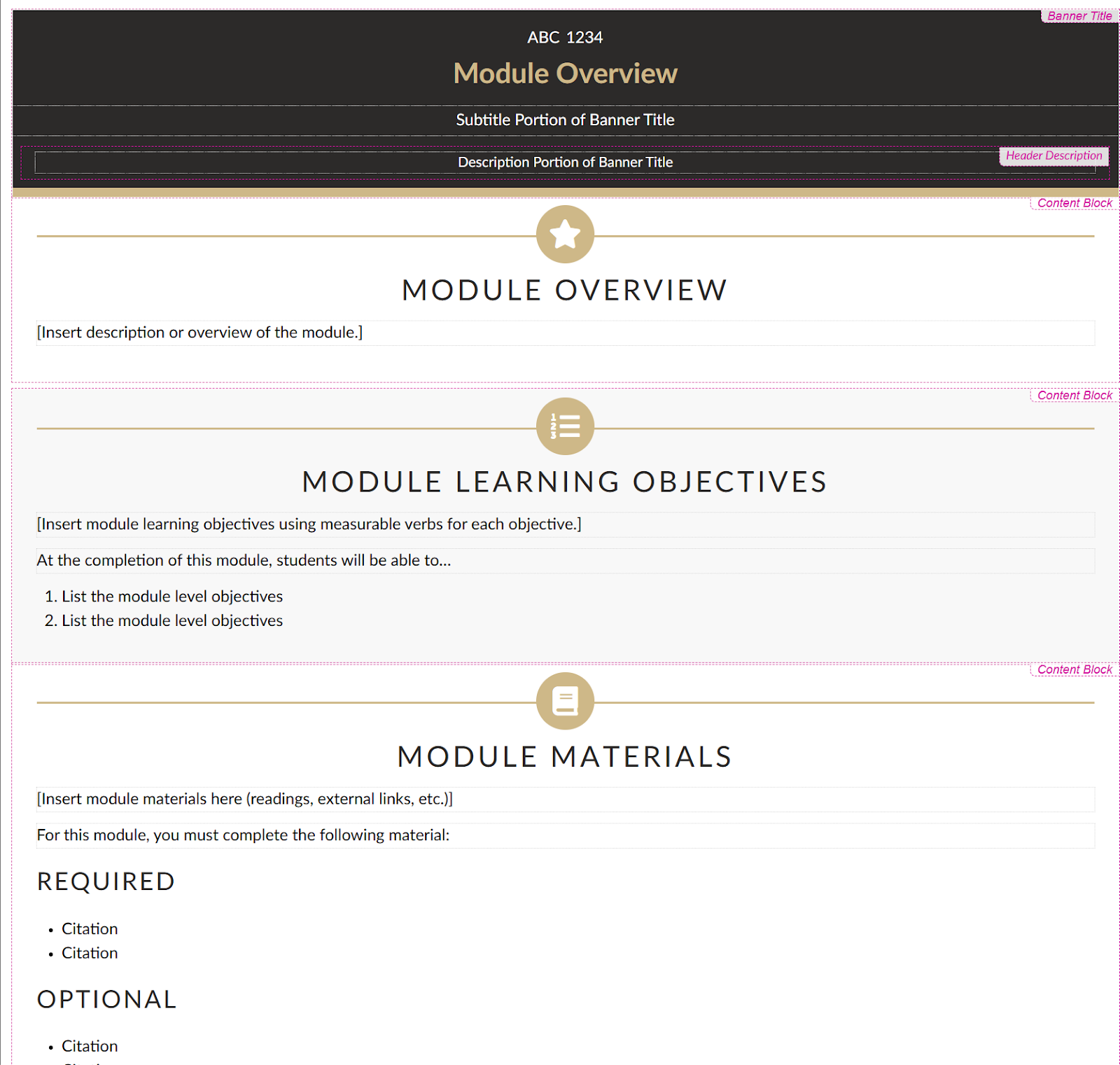
- Discussion Assignment:
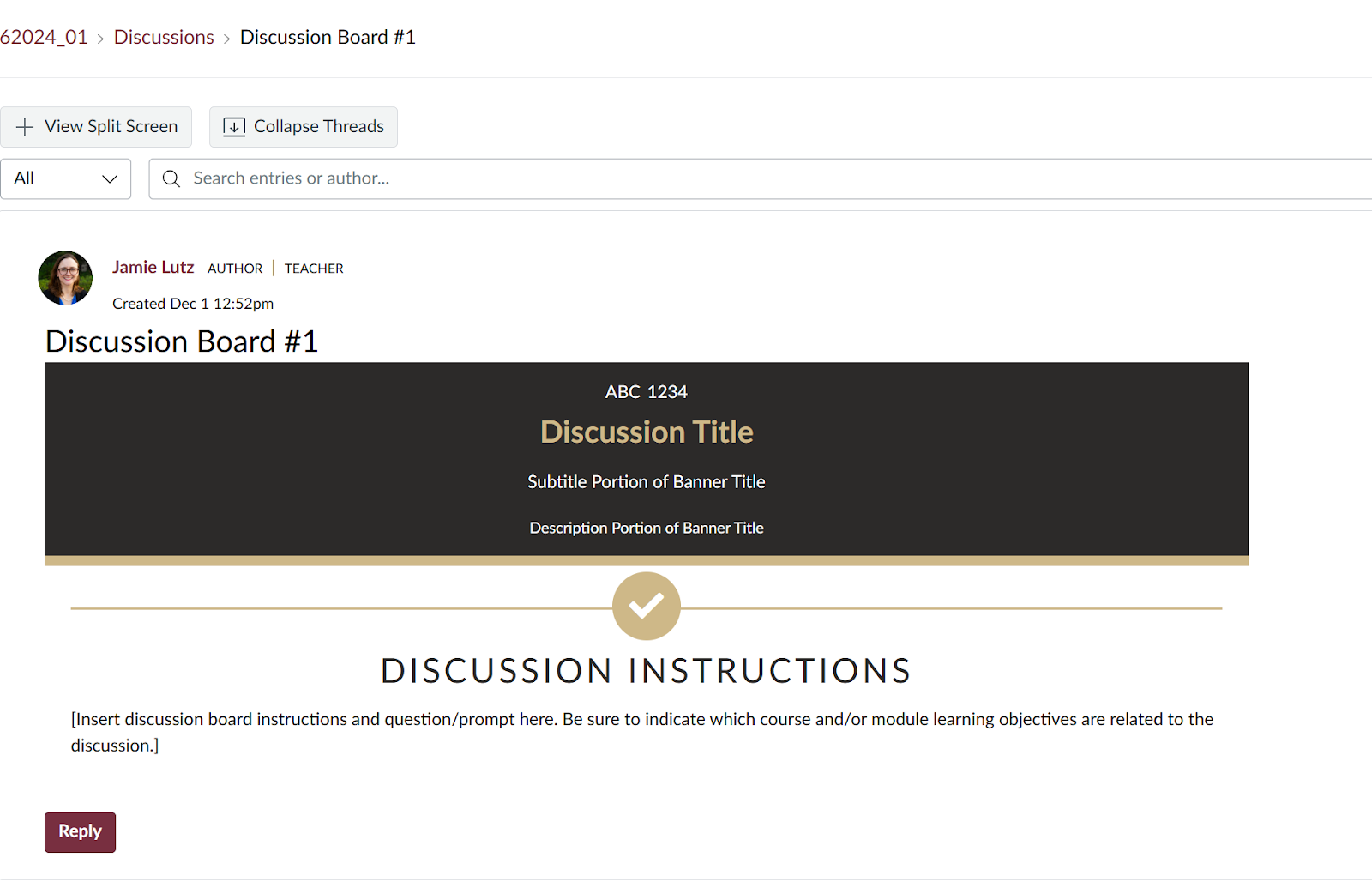
Check out our DesignPLUS Overview to get started. If you would prefer, you can also schedule a one-on-one technical assistance consultation or register for a workshop or webinar to learn more.
- Module Overview:
- Keep in mind: Links on Canvas Content Pages are static.
This means that they will not be updated automatically when you copy your course content from your development site to the live semester site, or if you copy course content from semester to semester. This does not pose a problem to external links (e.g., a link to nytimes.com), but internal course links (e.g., a link to an assignment or quiz) will break. You will need to manually update all internal course links when you copy your content into a new site.
Course Multimedia
- Make sure all multimedia is accessible.
All FSU courses and their content must be offered in a format that is accessible to all students. - We strongly recommend that you use Kaltura for any video or audio recordings that you make yourself.
Kaltura automatically captions media for you with a 75% accuracy rate, and you can correct any mistakes in your automatic captions fairly easily. Kaltura items also will not eat up space in your Canvas course site because Kaltura is an external application that integrates with Canvas, meaning that your Kaltura items are stored on Kaltura's servers. - To add a Kaltura video to a Canvas Module, you will need to use a workaround.
There is no way to add a Kaltura video directly to a course module. However, there is an easy workaround: Embed the Kaltura video in a Content Page via the rich content editor, and then add the Content Page to the module. - Integrate FSU Libraries resources into your Canvas site.
Integrating FSU Libraries resources helps to set your students up for success by making it as easy as possible for them to find the resources they'll need for that research paper!
Graded Work
Gradebook setup, use, and end-of-semester concerns
To save time at the end of the semester, we recommend following the guidelines in our Canvas Gradebook Best Practices to set up your gradebook correctly from the start, making it easier to use during the semester and ensuring your final grades are calculated accurately.
Quizzes & Assessments
When using the Canvas Quizzes tool, there are several variables you can choose from that allow you to create the type of assessment you want (e.g., timed assessment, single or multiple attempt assessments). To learn more about quiz security and the best options for creating, administering, and analyzing quizzes, see our Canvas Quizzes Best Practices article.
Assignments
In Canvas, any graded item will display on your Assignments page, including discussion items, Canvas quizzes/exams, and written assignments. However, the "Assignments" section of the Canvas Best Practices article primarily addresses written assignments submitted via Canvas.
If you do not need plagiarism detection for an assignment, or the assignment is not a written assignment, then use a Canvas assignment. If you do need to utilize plagiarism detection, then use a Turnitin Direct assignment. If you need both plagiarism detection and want students to complete peer reviews, use a Turnitin LTI assignment.
Regular Canvas Assignments
- If you wish to provide a grade for something that is not tangibly submitted, e.g., a participation grade, then create an assignment with the submission type "no submission."
- For anything that will be turned in offline and in-person, e.g., a pop quiz or a paper exam, create an "on-paper assignment."
- If you want your students to submit a video assignment, then use the submission type "text-entry": Your students can create a video that is uploaded to Kaltura, and then embed the Kaltura video into the text box of the assignment using the rich content editor.
- If you need to adjust a due date for a single student, follow the directions in How do I assign students different due dates for the same assignment?
- We recommend using Canvas rubrics when grading student work because they help to make grading more transparent and offer context for feedback.
Turnitin Direct Assignments
- We recommend that you and your students use Mozilla Firefox or Google Chrome when working with Turnitin Direct. Turnitin has historically not been optimized for Safari, and students may encounter technical issues.
-
If students will be submitting two very similar assignments, e.g., a draft and final version of a paper, make sure that in the draft assignment under the Turnitin settings, you select Do not store the submitted papers.

Note: If you do not do this, your students' final assignment submissions will return inaccurate results: the originality report for the final version submitted will show that your students have plagiarized themselves.
Turnitin LTI Assignments
- We recommend that you and your students use Mozilla Firefox or Google Chrome when working with Turnitin LTI. Turnitin has historically not been optimized for Safari, and students may encounter technical issues.
- To avoid display issues, set all Turnitin LTI assignments to load in a new tab.
- Under Turnitin's optional settings, make sure to check the "Allow late submissions" checkbox. This will ensure that, even in the event of extenuating circumstances, a student can still submit their Turnitin assignment.
- If you are working with a co-instructor or TA and wish to use an online rubric to grade the assignment, we recommend that you use Canvas's rubrics instead of Turnitin's rubrics and use Canvas's SpeedGrader interface to grade the Turnitin assignments. This is far easier than sharing a rubric with a co-instructor in Turnitin!
-
If students will be submitting two very similar assignments, e.g., a draft and final version of a paper, make sure that in the draft assignment under the Turnitin settings, you select Do not store the submitted papers.

Note: If you do not do this, your students' final assignment submissions will return inaccurate information: The originality report for the final version submitted will show that your students have plagiarized themselves.
-
Discussions
- We recommend requiring students to post to a discussion before seeing their peers' posts, and making discussion replies threaded.
Requiring students to make an initial post before seeing what their peers have posted encourages greater originality and may lead to a more fruitful discussion, and threaded replies allow your students to respond to each other more easily.

- Discussion items are not easily gradeable retroactively.
Discussions can be easily graded in the SpeedGrader. However, if you retroactively make a discussion into a graded item - meaning that you wait until after students have posted to the discussion to make it a graded item - then you will not be able to use SpeedGrader to view and grade students' posts. You will have to manually review the discussion and grade students' work. - Students cannot automatically attach files to discussion posts
Instructors can always attach files to a post, but if you want students to have this capability as well, it must be enabled in the Discussion settings.
Communication
Communication Basics
- Configure your Notifications Settings.
We recommend that you use the settings outlined in our Canvas Notification Settings Guide. - Specify how you want your students to contact you.
Though the Canvas Inbox messaging tool is convenient for your students, it is not as robust as your FSU webmail. You do not have to use Canvas's Inbox messaging tool - it is optional. Make sure to include whatever communication method(s) you prefer to use on your course home page and/or syllabus. - Canvas course announcements are an excellent way to communicate with the whole class.
If your students have set up their notification settings as we recommend, then they will receive an email notification when you post a new course announcement. - We do not recommend using Canvas's Chat.
Canvas's Chat tool functions like an instant messaging platform. However, its messages are not private. All users in a course can view the chat history, so we do not recommend using this tool. If you do choose to use it, do not discuss grades or any private student information in this tool, and communicate to your students that anything sent via this tool is visible to the entire class.
- Communicating with students before classes start
If you want to communicate with your students before the first day of class, use one of the methods recommended in How do I message my students in a course before the semester starts?.
Web Conferencing Options
If you are teaching a fully online (distance learning) course, we recommend using Zoom for web conferencing and following our web conferencing best practices for optimal experience. Zoom is available to everyone at FSU and can be used via its Canvas integration or outside of Canvas. You can record your Zoom meetings if you wish, and then upload them to Kaltura later. Canvas's built-in web conferencing tool, Canvas Conferences (BigBlueButton), is also available in all Canvas courses.
Keep in mind Conferences's limitations:
- Recordings of Conferences are automatically deleted after 7 days. There is no way around this automatic deletion.
- Students must be invited to a conference in order to access it - conferences will not appear for a student unless they are invited to that particular conference.
- There is a 100-viewer limit per conference.
Note: this may not be ideal for larger courses. Instructure advises this tool is best for conferences where there are 25 viewers or fewer. - Uploading internal media content is not available. The screen sharing option does not transmit audio and has a reduced frame rate, so we do not recommend sharing video via Canvas Conferences. External links in the chat window are the only method available to share media content.











