


Videos posted in your course's Media Gallery can be further organized into playlists based on criteria of your choice. This article will show you how to put those playlists together and how to edit them once they're in place.
Note: Only videos uploaded to the Media Gallery can be added into a playlist. If you would like to add more videos to your course's Media Gallery, follow the directions in How to add video to your course's Media Gallery.
How to create a Kaltura Playlist
In addition to following the steps below, you can also watch Kaltura Support's Canvas Course Gallery Playlists video tutorial for a quick overview of creating playlists:
-
Click Course Media on the course navigation menu. This will
take you to your Media Gallery for that course.

-
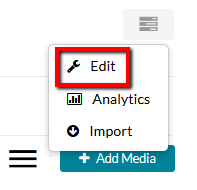
On the Media Gallery page click the
black overflow button in the top-right of the page.

-
Select Edit from the drop-down menu that appears. This will
take you to the primary editing screen for this course's Media Gallery.
-
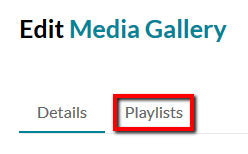
On the Edit Media Gallery page select the Playlists option
on the upper left side of the page. This will open the Playlists menu for
your Media Gallery.
-
To create a new playlist, click the
+ Create Channel Playlist button on the center-right side
of the screen. This will open up a small drop-down menu.

-
The page will open to the menu for your new playlist. Here you can enter the
title of the playlist, as well as a description and tags. After you have
entered in this information, click
My Media or Media Gallery depending on how
you have your content stored.

-
In the "Add Items To Your Playlist" section, you can select which videos in
this course's Media Gallery will be assigned to your playlist. Scroll
through the videos and click the + (plus) button for each
video you want to add to the playlist. Each video will appear in the
right-hand column once you do so. A green check-mark will also appear next
to a video in the left-hand sidebar to indicate that it has been added to
the playlist. If a Kaltura video you can publish is not visible here, you
will need to
add it to your Media Gallery for this course.


-
You can re-arrange the order of videos within the right-hand sidebar by
clicking and dragging the grey icons on the left of each video tab.

-
If you need to remove a video from the playlist, click the grey
dot menu on the right side of each video and click
Remove.
Once you are satisfied with the playlist's basic info and content, the playlist is automatically saved and can be viewed in your Media Gallery or My Media.

How to edit playlists
To edit any playlists you own:
- Click Course Media on the course navigation menu. This will take you to your Media Gallery for that course.
-
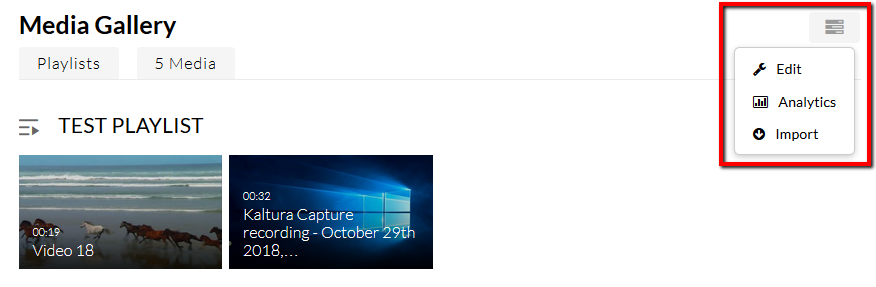
In the Media Gallery, click the black overflow icon on the
right of the screen and select the Edit option from the
drop-down menu that appears.
-
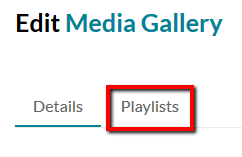
Click on the Playlists tab in the upper right part of the
screen.
-
The playlist management screen should appear. Each row represents a playlist
in this course's Media Gallery. Find the playlist you want to edit and click
the Pencil button in that row.

- This will open up the same edit menu as creating a new playlist. The Set Details field will allow you to alter the playlist's basic info, and the Add Items To Your Playlist field will allow you to add or remove videos from the playlist. When you are finished making your desired changes, click the Save button at the bottom of the window.
How to embed playlists into Canvas course content
Media Gallery playlists can also be embedded in Pages, Assignment descriptions, and other areas of Canvas that use the rich content editor. To do so, follow the steps in our How to embed Kaltura playlists into Canvas course content article.











