


Instructors: How to create a Turnitin assignment using Turnitin Direct
Last updated: Apr 16, 2026
13349
views

How to Create a Turnitin Assignment
-
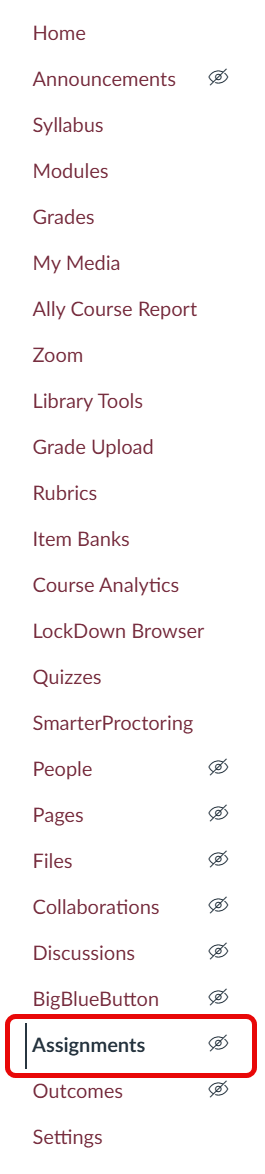
Click on Assignments in the left-side navigation bar.
-
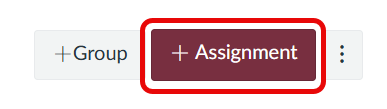
Click + Assignment.
-
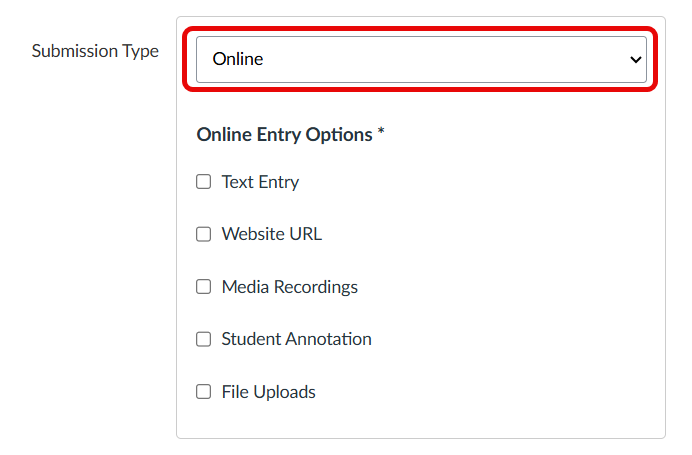
Scroll down to the Submission Type section and select
Online (which is the default option).
-
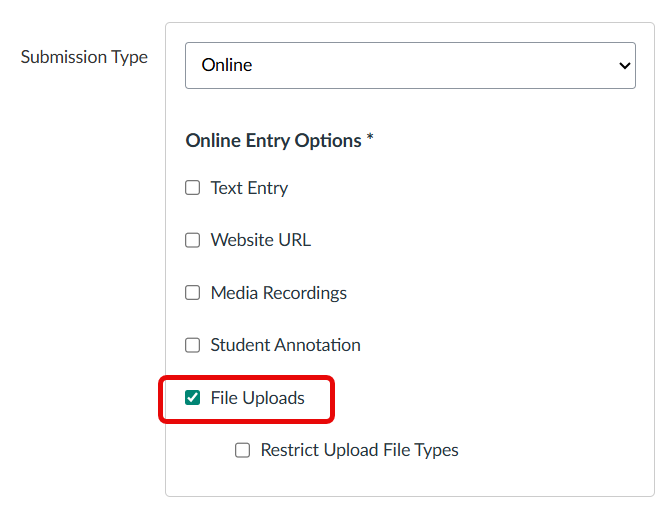
After selecting Online, check the
File Uploads checkbox.
-
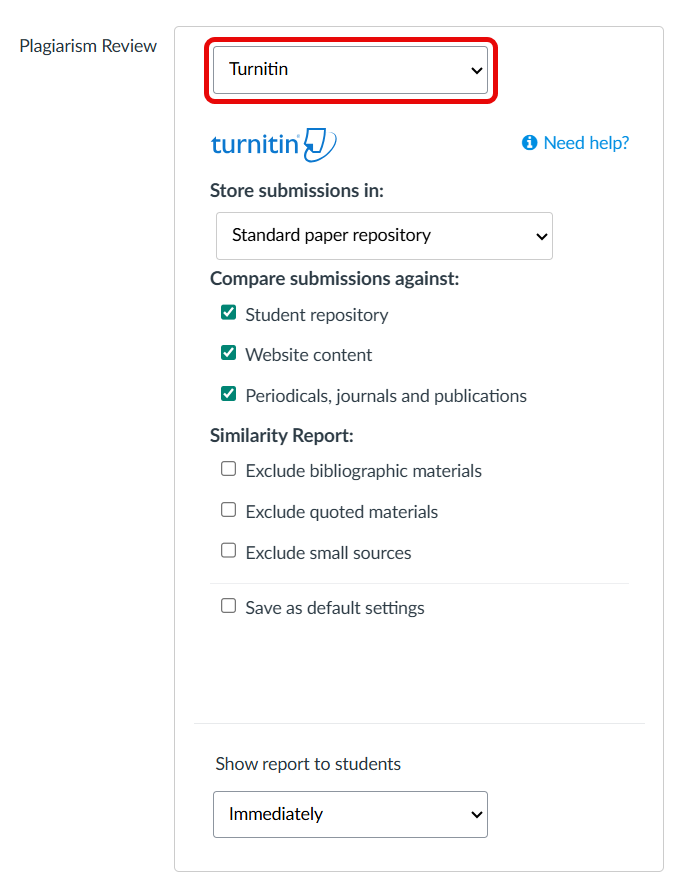
Scroll down to the Plagiarism Review section. Select
Turnitin from this drop-down menu.
-
After selecting Turnitin, advanced options will appear that
you may choose from.
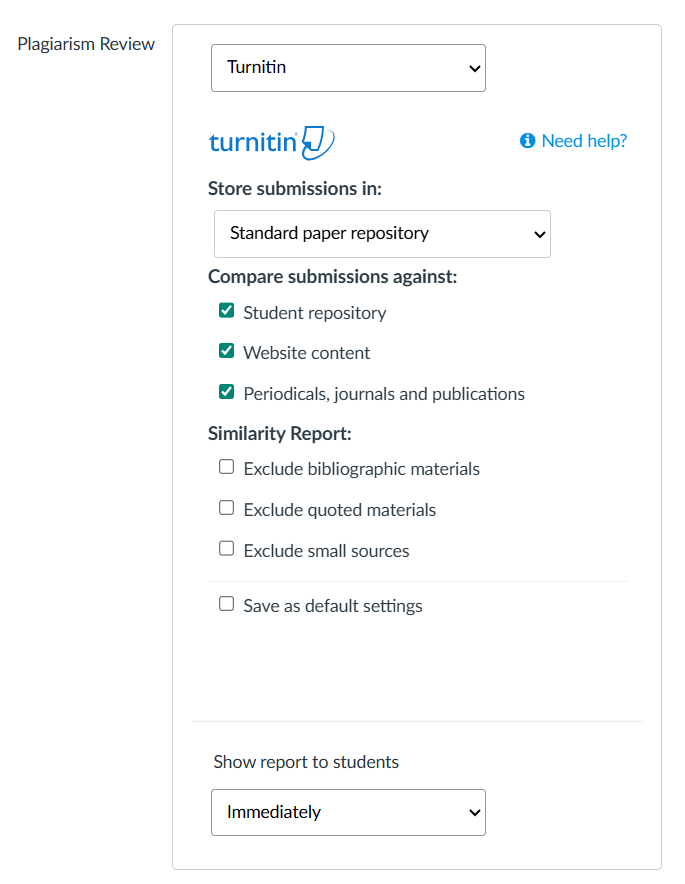
Note: If asking students to submit similar papers (e.g., multiple drafts of the same paper), ensure earlier drafts have the Store submissions in: setting set to "Do not store the submitted papers," and the final draft is set to "Standard paper repository." Failure to do so will make final drafts appear as if students are plagiarizing themselves.
- Be sure to complete all assignment settings as normal (e.g., Assignment Name, Point value, Submission Attempts).
-
Click the Save button to save the assignment (which does
not publish the assignment) or Save & Publish to save the
assignment and publish it at the same time. Students will not be able to see
the assignment until it is published.












