


 1665
1665
What is Discussion Checkpoints?
Discussion Checkpoints is a new Canvas feature that allows instructors to set multiple due dates and distinct point values for different stages of a graded discussion post. This functionality transforms the traditional one-due-date discussion, enabling a more structured and transparent workflow for both instructors and students. For example, an instructor can set a due date for the initial post and a later, separate due date for the required replies, each with its own point value.
This feature simplifies grading and enhances student engagement by providing clear expectations. In SpeedGrader, instructors can easily assign points for the initial post and the replies separately, and the total score is calculated automatically. For students, the multiple due dates appear clearly in their calendars and to-do lists, helping them manage their time and ensuring they engage with the discussion throughout the week rather than all at once. Discussion Checkpoints promotes a more dynamic, thoughtful, and manageable online learning environment.
How to Access Discussion Checkpoints
- Open Discussions in the left-hand navigation of your Canvas course.
- Select + Add Discussion in the top-right corner of the page.
-
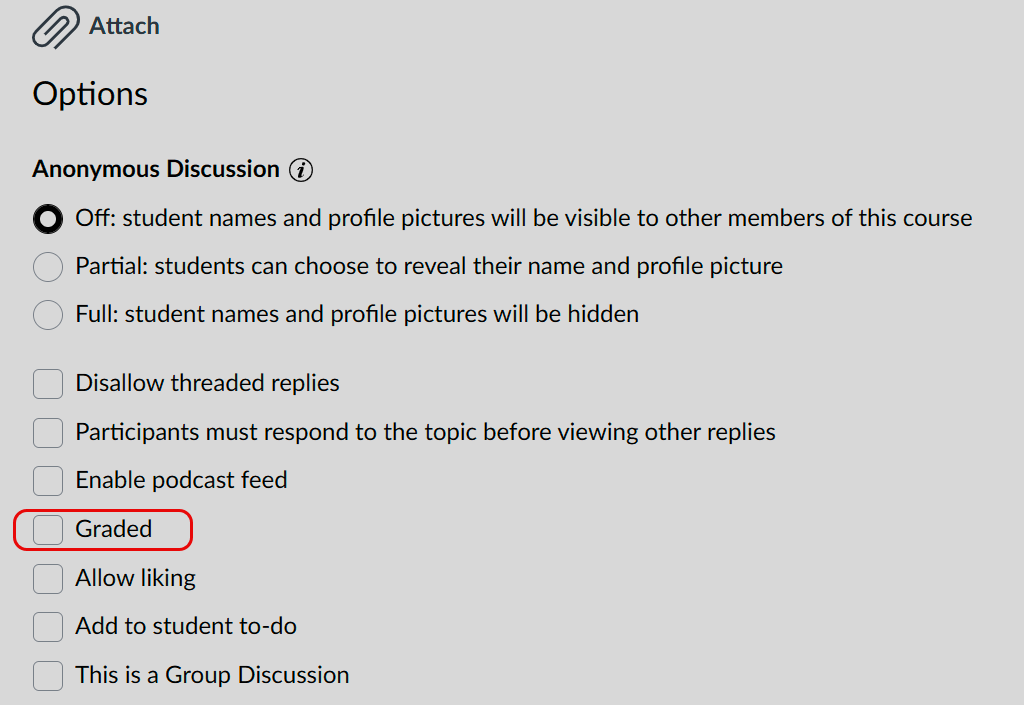
Scroll down to Options and check the box that says
Graded.
-
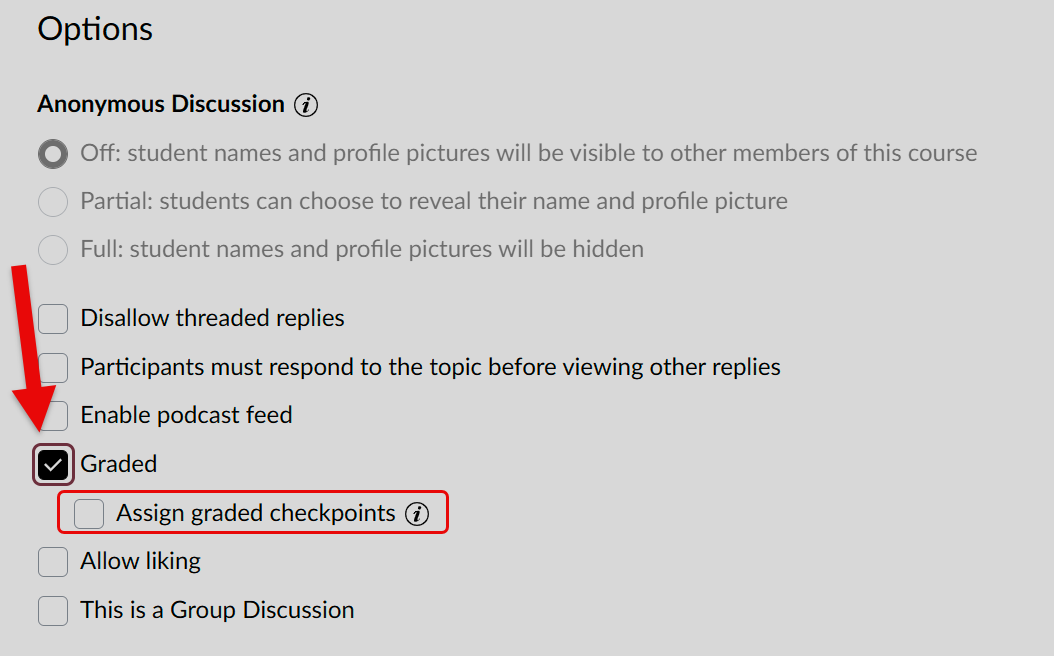
Once checked, select the pop-out box that says
Assign graded checkpoints.
-
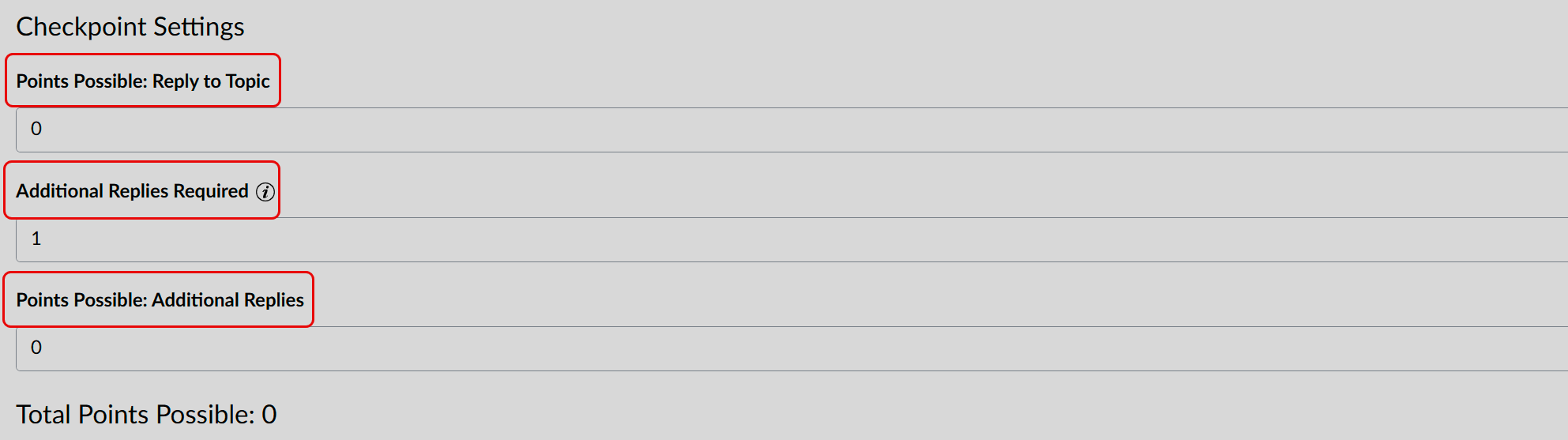
Fill in the information and scroll down to
Checkpoint Settings. This is where you will enter
Points Possible,
Additional Replies Required, and
Points Possible: Additional Replies.
-
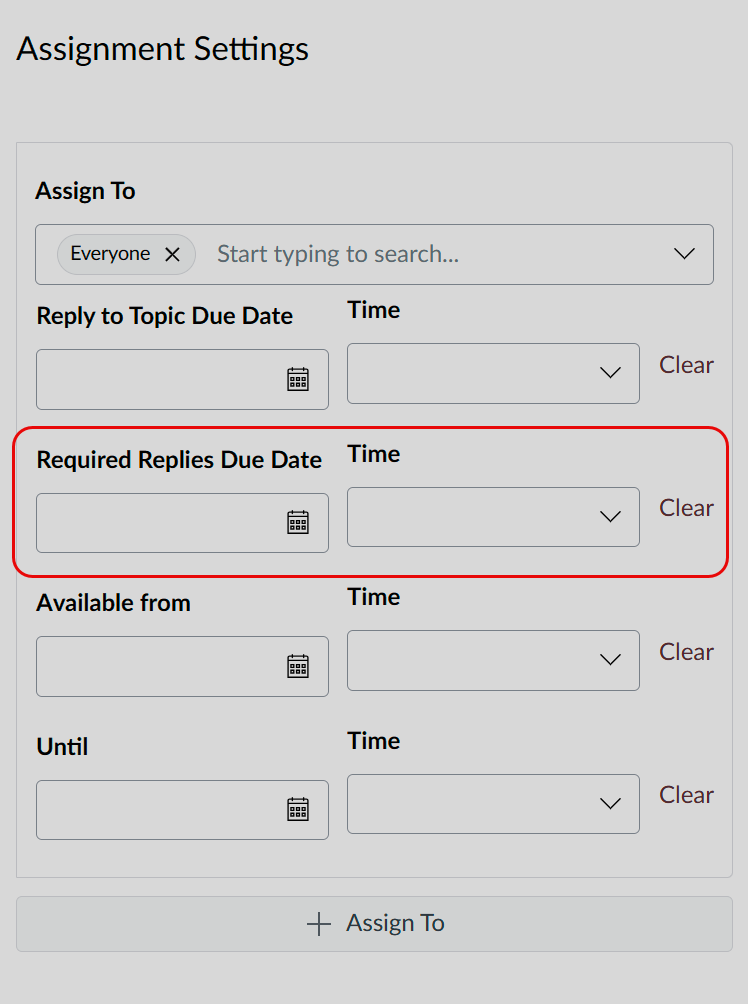
In Assignment Settings, adjust the
Required Replies Due Date and Times.
- Fill in the rest of the discussion information and save the assignment!











