How to Archive a Canvas Course
Last updated: Sep 14, 2026
236
views

Introduction
As an instructor, you may wish to archive your non-active courses. This allows you more control over course site access, minimizes your accessibility responsibilities, maximizes academic integrity, allows you to manage "incompletes" cleanly, and allows for clean course copies to be made in subsequent terms.
How to Archive a Canvas Course
- Navigate to your Canvas course site's Settings link from the navigation menu.
- Under the Course Details tab, check the following settings:
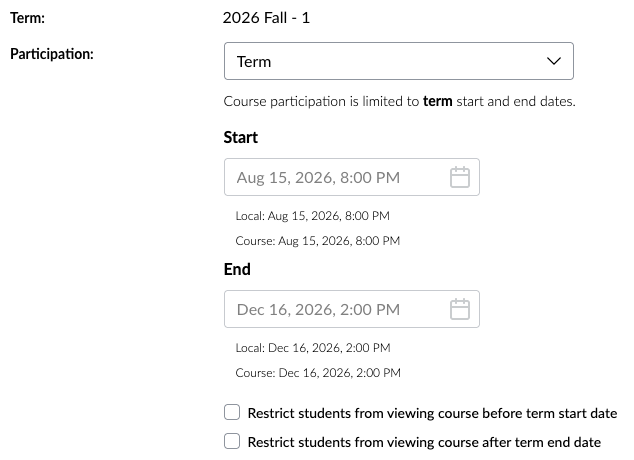
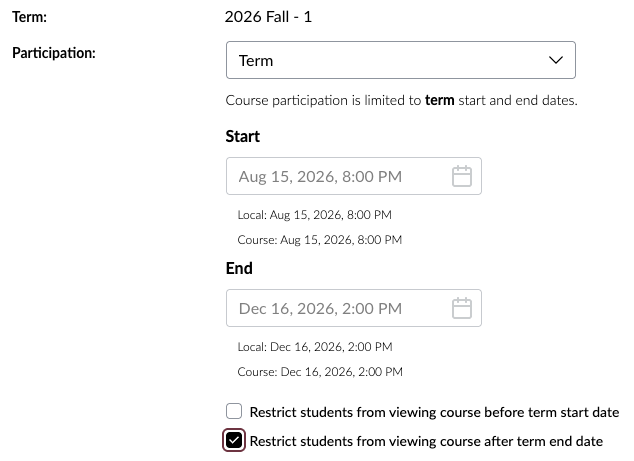
- Term should indicate what term your course is set to.
- Check the Participation drop-down:
- If the Participation drop-down is set to Term, the dates will auto-populate to the start and end of the associated term. This setting is preferred/default.
- If the Participation drop-down is set to Course, you will need to define the specific start and end dates. This may be used if working with a student through an Incomplete or for specific exception scenarios.
- Look for the check boxes in the Participation settings, and check the box that says Restrict students from viewing course after term end date. By default, student access checkboxes are not selected, meaning students can view and access courses before and after course participation dates as long as the course is in a Published status.
- Save your changes by clicking the garnet Update Course Details box at the bottom of the page.
Notes
- Accessibility
By default, once a course has concluded, students can still enter and view the course, but course content is displayed in a read-only state. By enabling the restriction to prevent students from viewing the course after the term date end, you remove the course as a "public-facing" site, also removing the necessity to meet accessibility standards for a concluded course. - Academic Integrity
By concluding a course and restricting access, you prevent former students from accessing and sharing course content to future students. Students will only retain any content they downloaded and preserved during the course. - Managing "Incompletes" Cleanly
Restricting students from viewing the course after the term end date allows you to lock the standard roster while using section-level overrides to grant temporary, isolated access only to student(s) finishing an incomplete grade. - Course Copies
The course remains fully available in your Canvas repository to use as a source to create course copies (or copy specific content) into future Canvas course shells. Be advised that copied content will need to meet web accessibility standards, so the earlier your content is made accessible, the less maintenance will be required over time.