How to add an ACE Tutoring link to your course navigation menu

Last updated: Apr 29, 2026
4126
views

Enabling ACE Tutoring
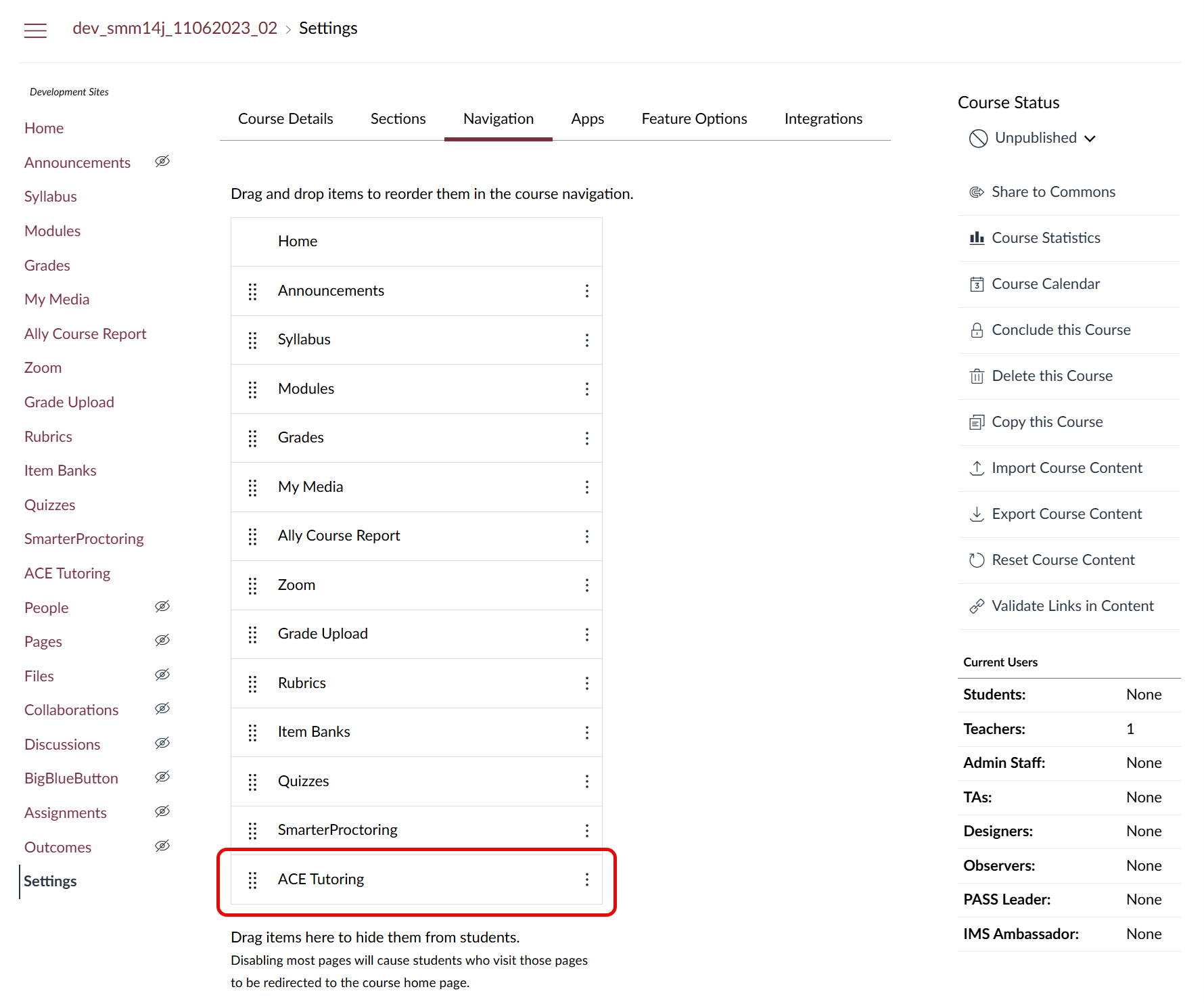
We have integrated FSU's ACE Tutoring with Canvas, which means that you can now add an ACE Tutoring link to your Canvas course navigation menu. Simply follow the directions for enabling a navigation item in the Canvas article How do I manage Course Navigation links?.
See the image below to view an example within FSU's Canvas.