


 193
193
Getting Started with Simple Syllabus
Below is the workflow for editing your syllabi in Simple Syllabus when accessed via your Canvas course. The workflow for editing syllabi in Simple Syllabus via the web browser is the same but is accessed directly via the Simple Syllabus site. See our article Accessing Simple Syllabus for Instructors: Web Portal for more information on the web portal workflow.
1. Log into your Canvas course via the regular URL: https://canvas.fsu.edu/ and select Simple Syllabus from the left-hand navigation. You should be automatically logged in via SSO.

Note: This will be turned on for Summer 2026 courses onward. Your Spring 2026 courses will not have this option in Canvas.
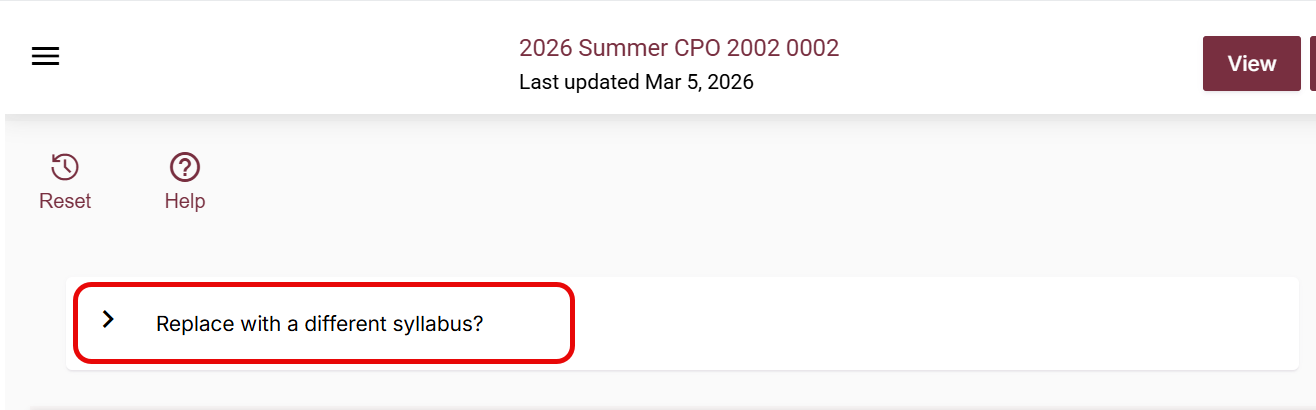
2. This will bring you right into your course's syllabus, where you can begin editing. If this is a repeat course or section, you can select the "Replace with a different Syllabus?" option to choose from a repository of your existing syllabi.
You can select from the syllabi title cards below, the term dropdown menu to the left, or the search bar to the right.

Syllabus Content Components
3. Instructors will have several options when editing their syllabi. Some sections will auto-populate with FSU or state-mandated policy information, while others will be completely customizable to the specific course.Below is a breakdown of what is and isn't required when editing your syllabi.
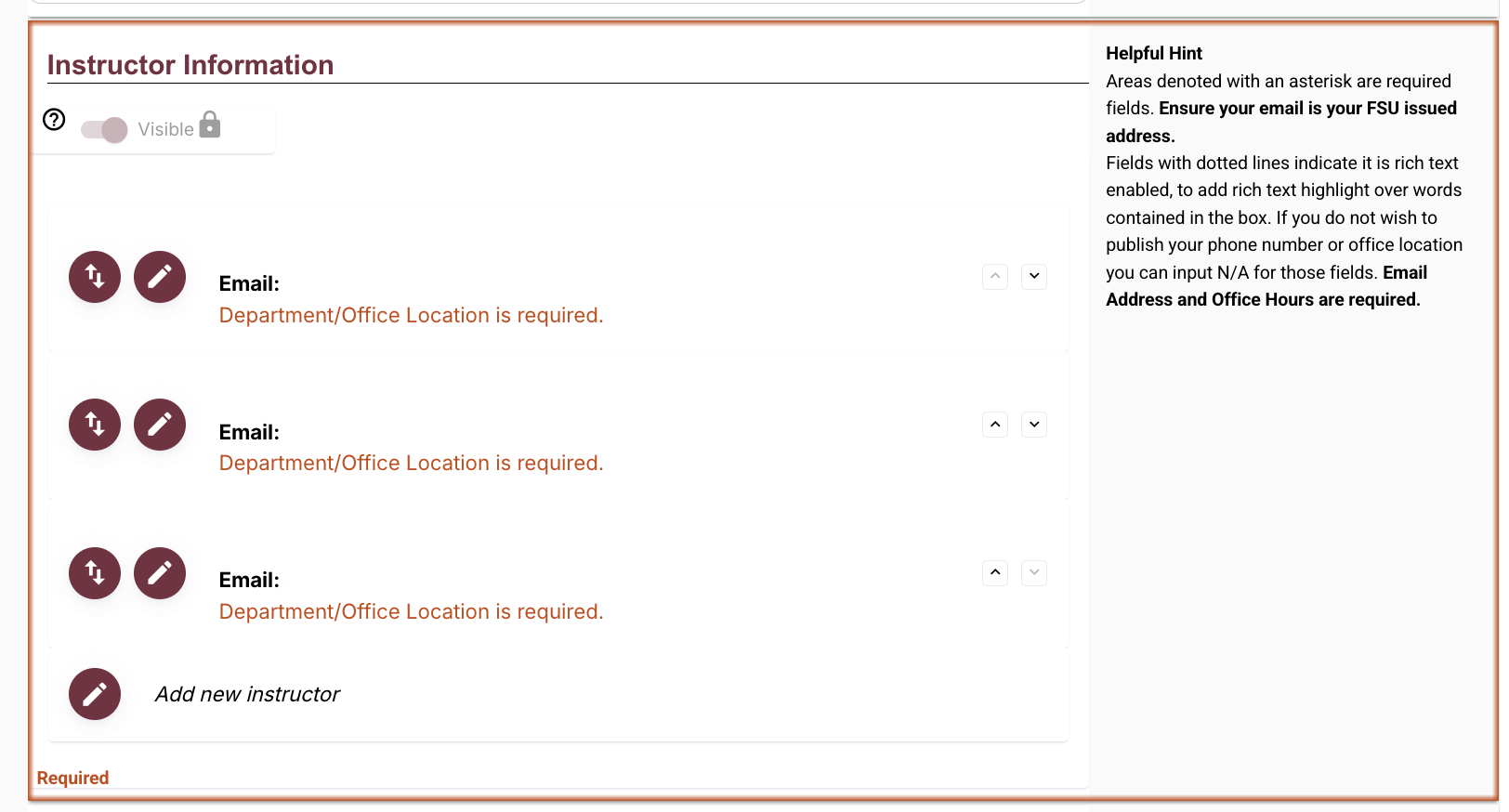
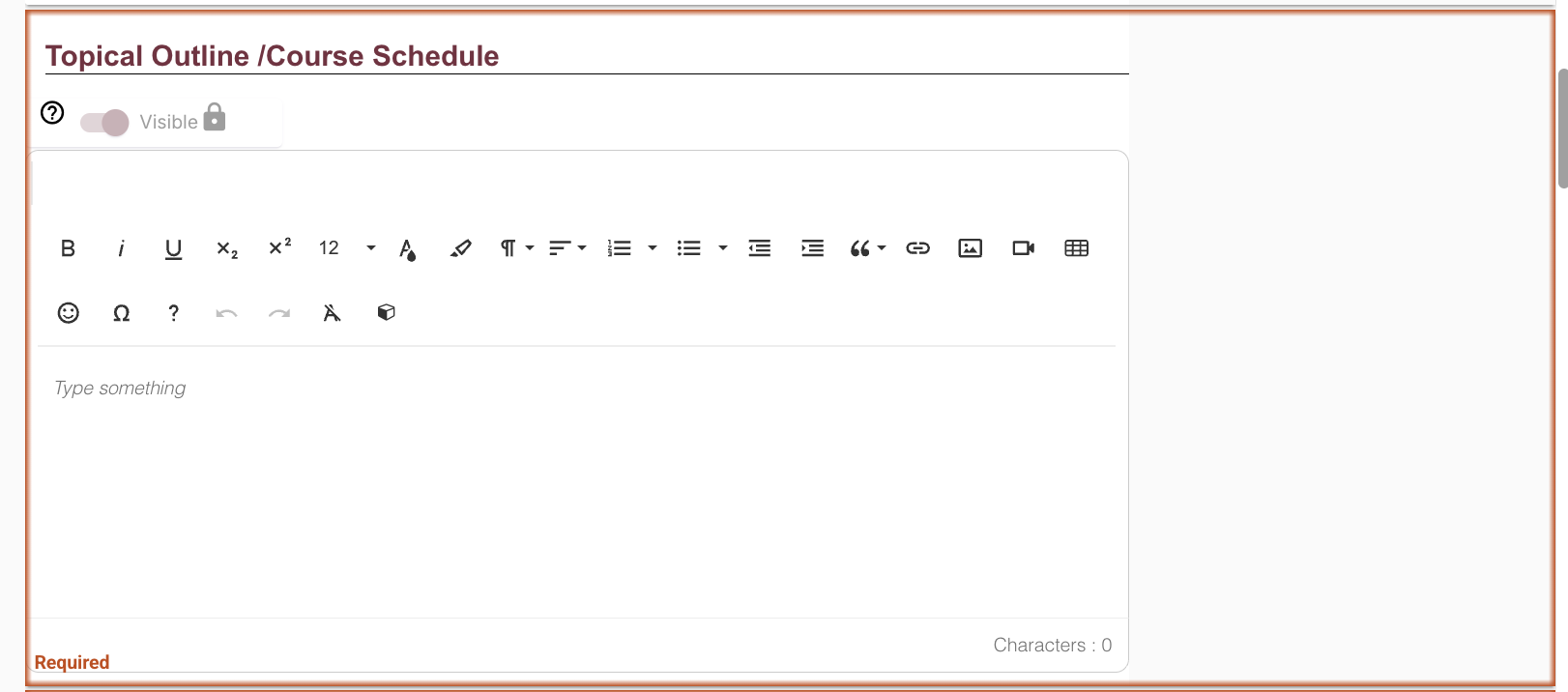
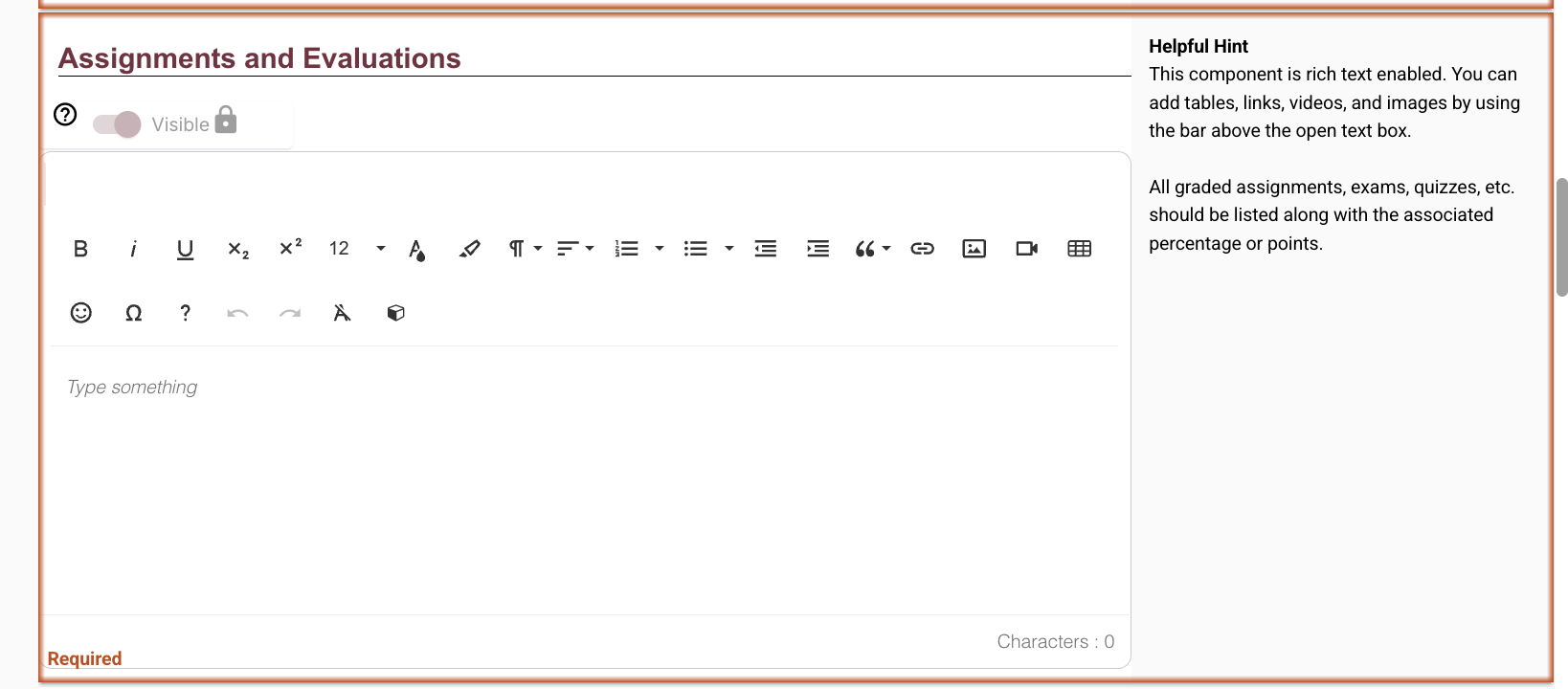
Note: Required sections will be outlined in a red box, with an identifier in the bottom-left corner that says "Required" in red text. These sections will also have the visibility toggle locked by default.
Some sections will have the option to toggle the visibility on or off.
On the right-hand side of each section are Helpful Hints provided to guide and assist the syllabi editing process.
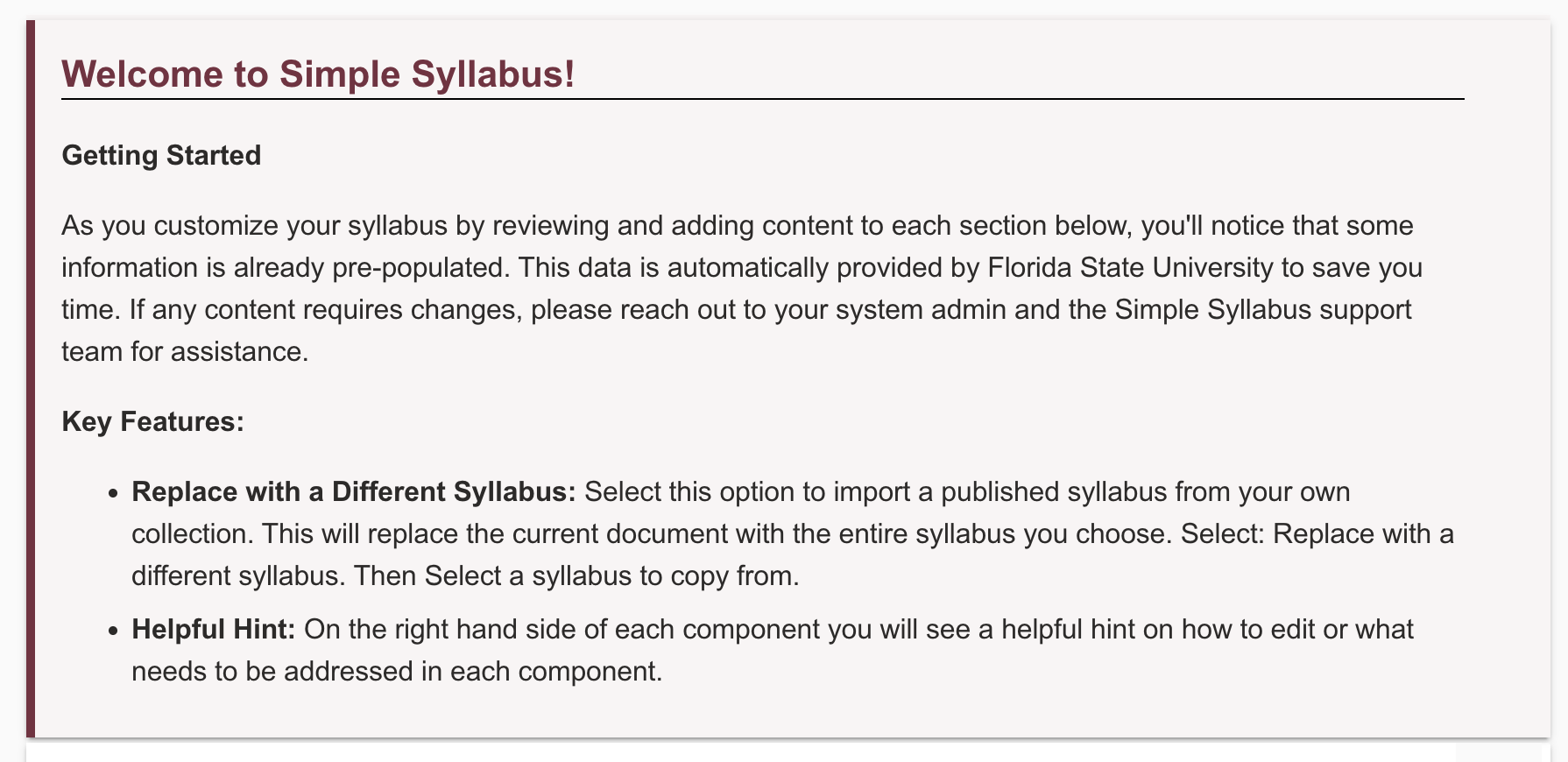
The first thing you'll see is a welcome message with useful information to get you started:
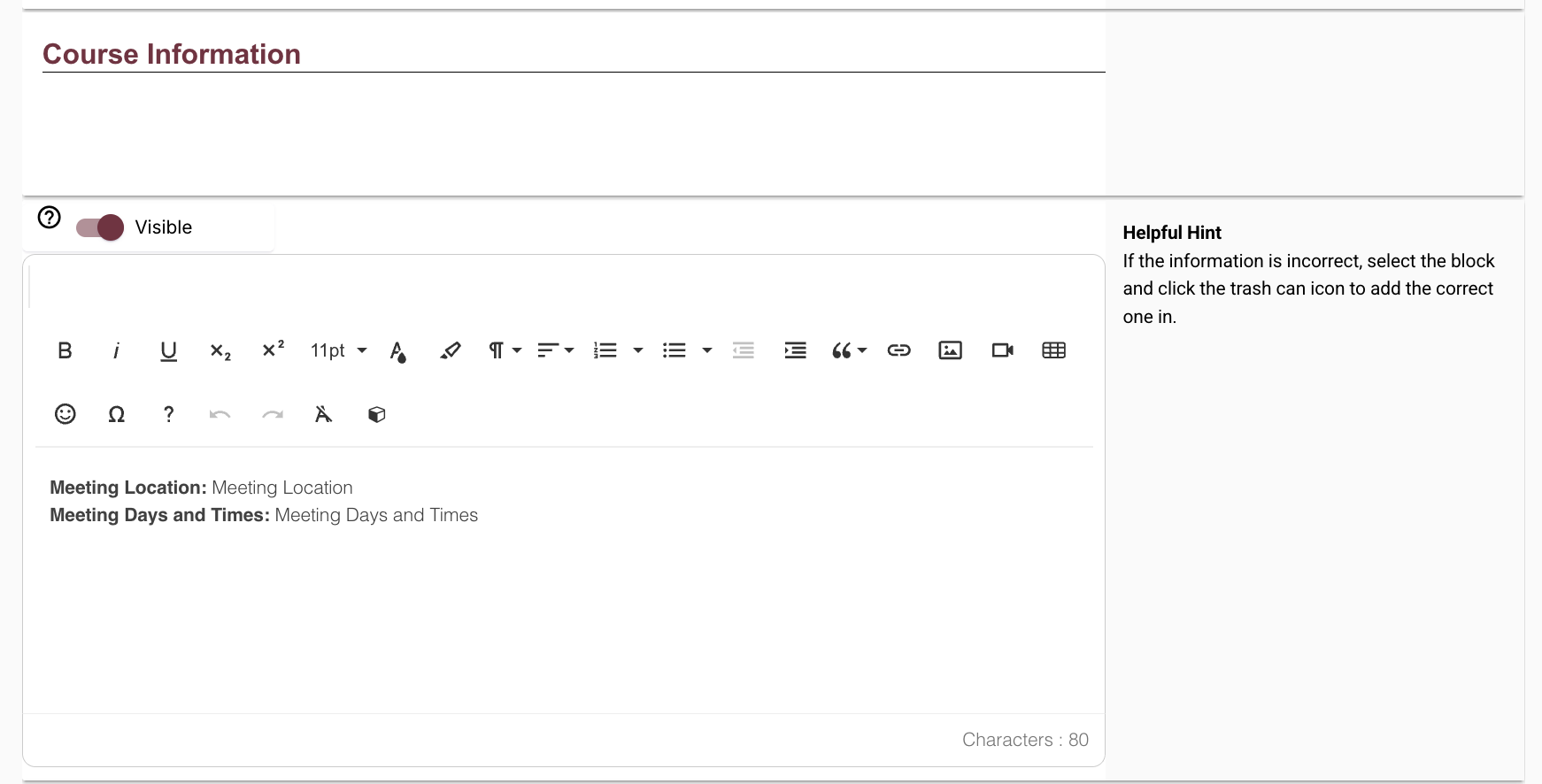
Course Information
This is where you'll use the rich content editor (RCE) to edit pertinent course information, such as meeting time(s) and location. This information should auto-populate, but click anywhere in the text field to make edits if needed.
Instructor Information (Required)
This is where your name and email will auto-populate. Ensure your email address is your FSU email address. Email and office hours are required; your phone number and office location can be optional, indicated by inputting “N/A” in those fields. Use the editing and reordering widgets to edit the content and layout of this section, or to add a new instructor.
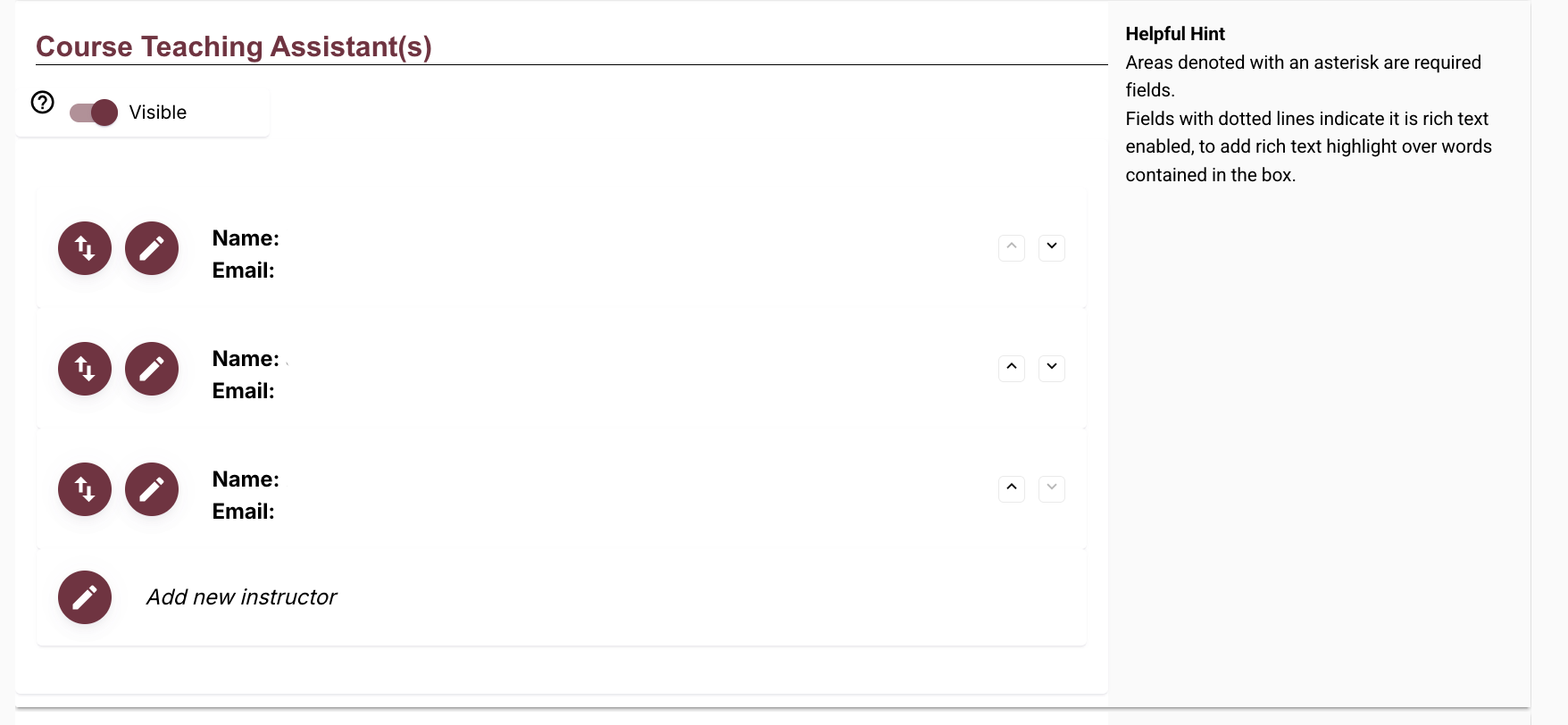
Course Teaching Assistant(s)
This field allows you to input information regarding TAs, GAs, or other assistant contacts. This section is optional and can be toggled visible or invisible.
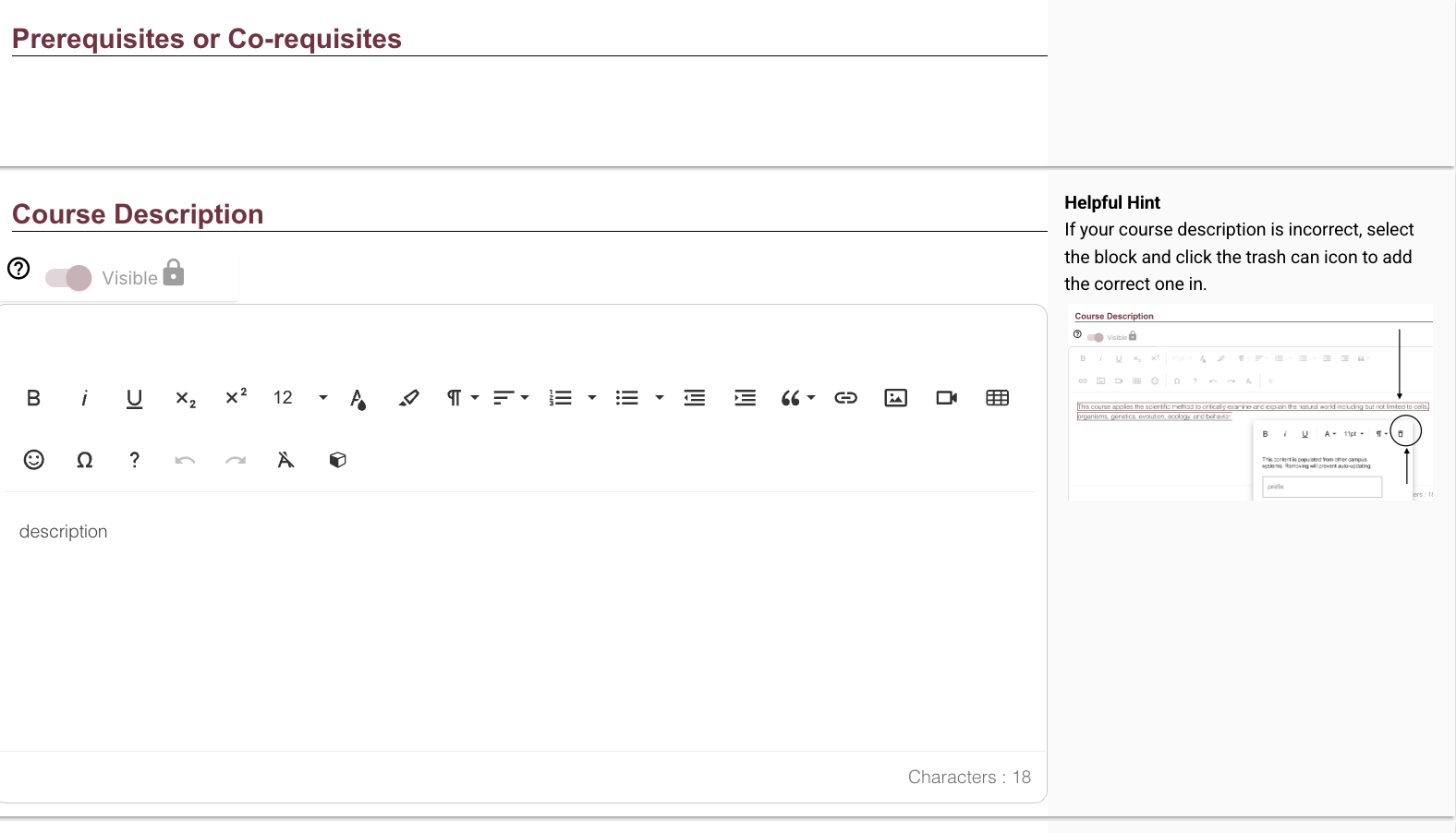
Course Description
This is where your course description will be displayed. To edit, select anywhere in the text field.
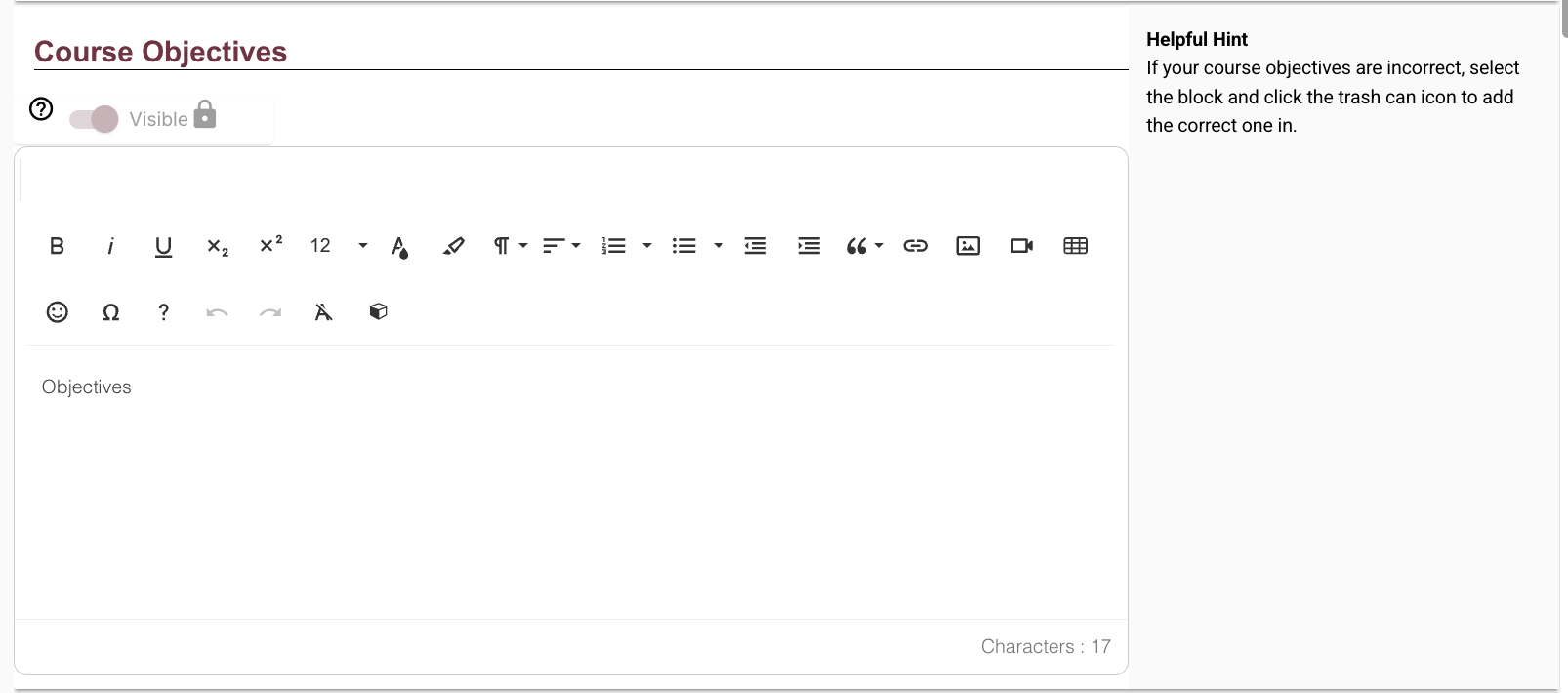
Course Objectives
This is where your course objectives will be displayed. Due to inconsistencies with Course Objectives, instructors are now advised to copy/paste or manually enter the Course Objectives into the appropriate field in Simple Syllabus. If instructors have previously edited Course Objectives in Simple Syllabus and saved their progress, those Course Objectives remain. To edit, select anywhere in the text field.
Required Textbooks and Readings (Required)
This is where your required readings and reading materials will be posted. At least one textbook or reading is required for this section.
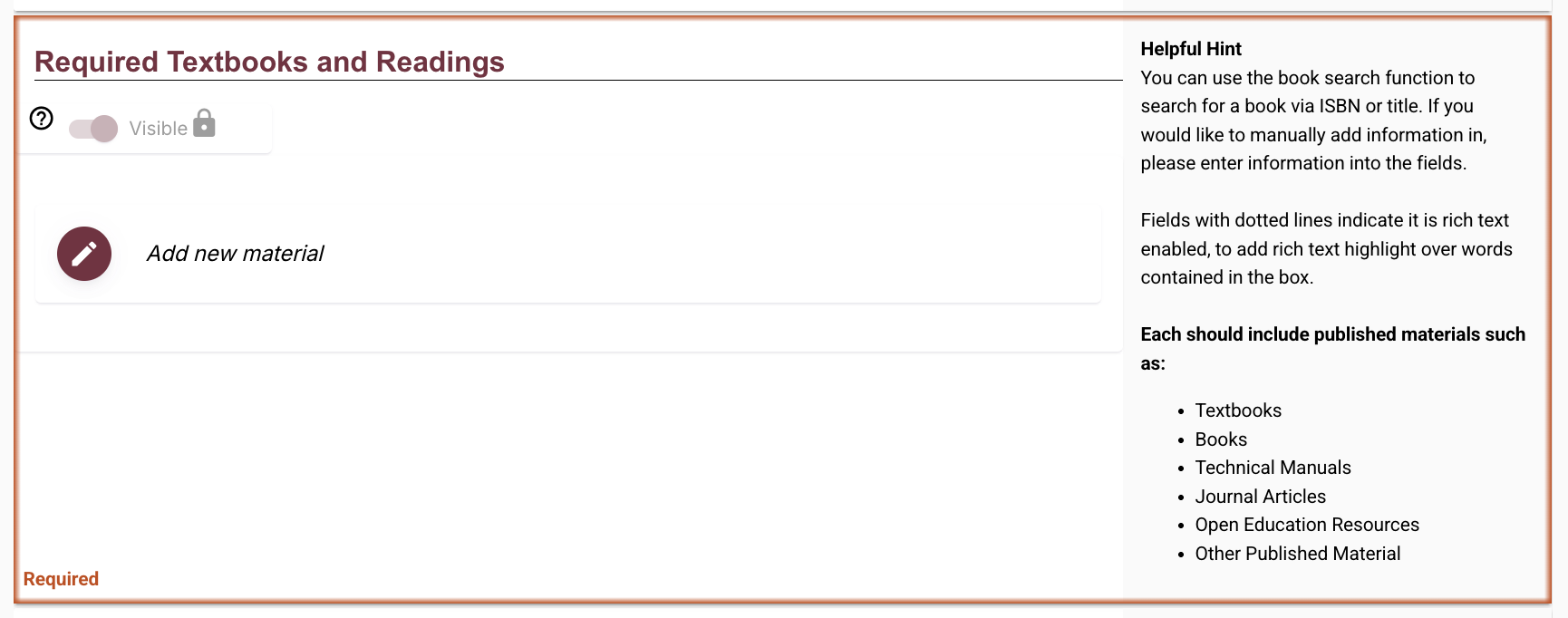
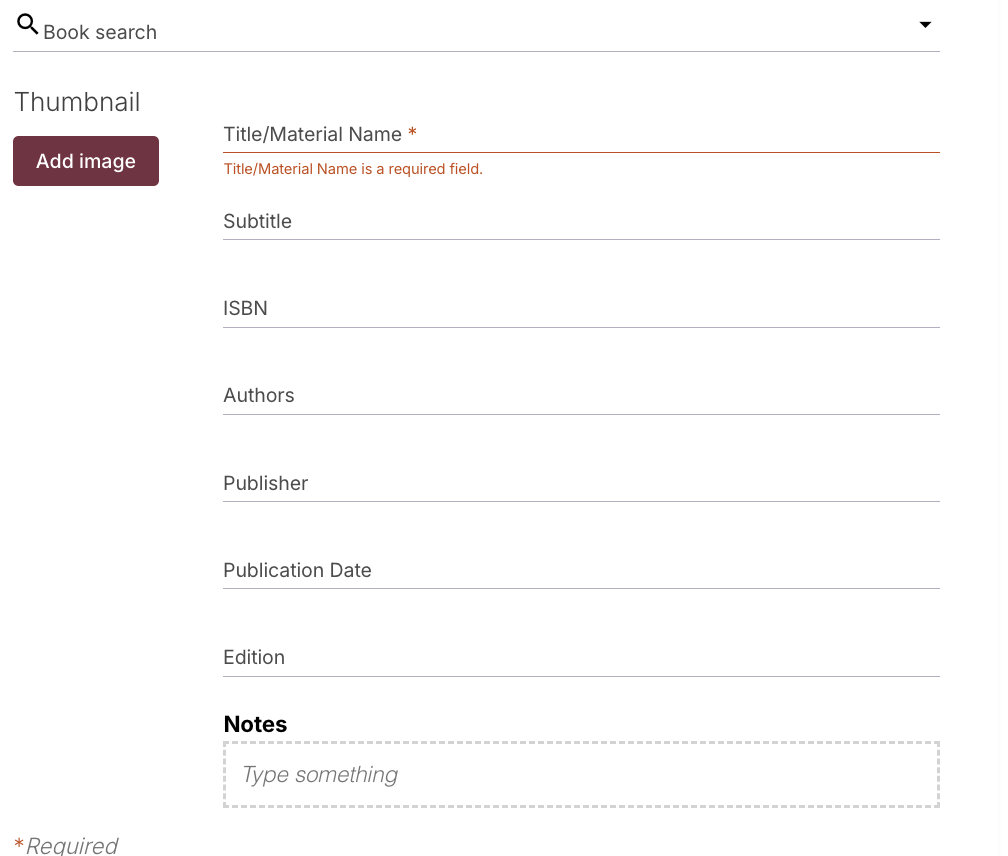
Select the edit icon to fill in the fields with the available information, including title, subtitle, ISBN, authors, publisher, publication date, edition, and a thumbnail image, or use the book search function at the top of the menu.
You can use the Book search function to find the textbook by title or ISBN, or you can manually enter the information.
Recommended Readings
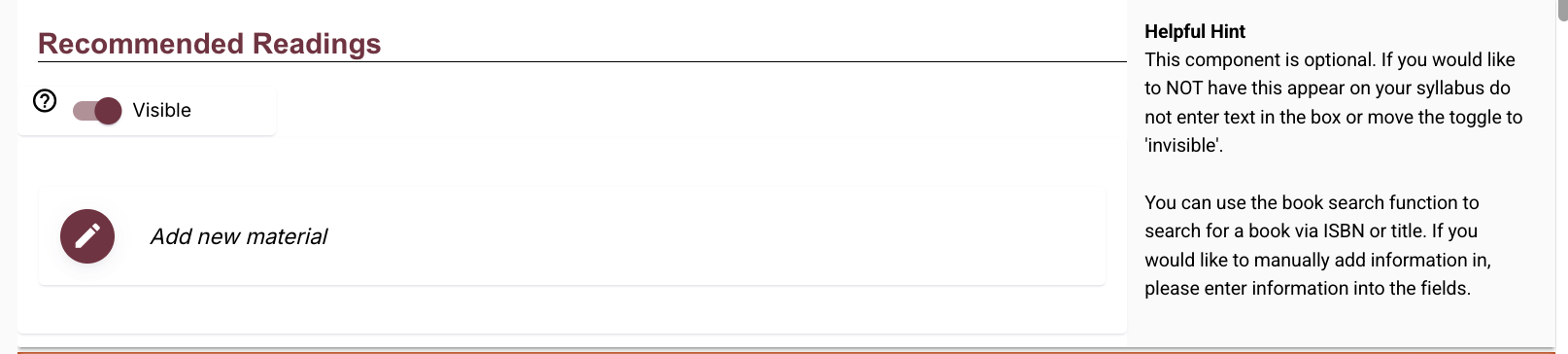
This section lists recommended readings. This section is optional and can be toggled visible or invisible.
Topical Outline/Course Schedule (Required)
This is where the course outline or course schedule will be listed. This component is required. To edit this section, select anywhere in the text field.
Assignments and Evaluations (Required)
This section lists information regarding assignments and evaluations. All graded assignments, exams, quizzes, etc., should be listed along with the associated percentage or points.
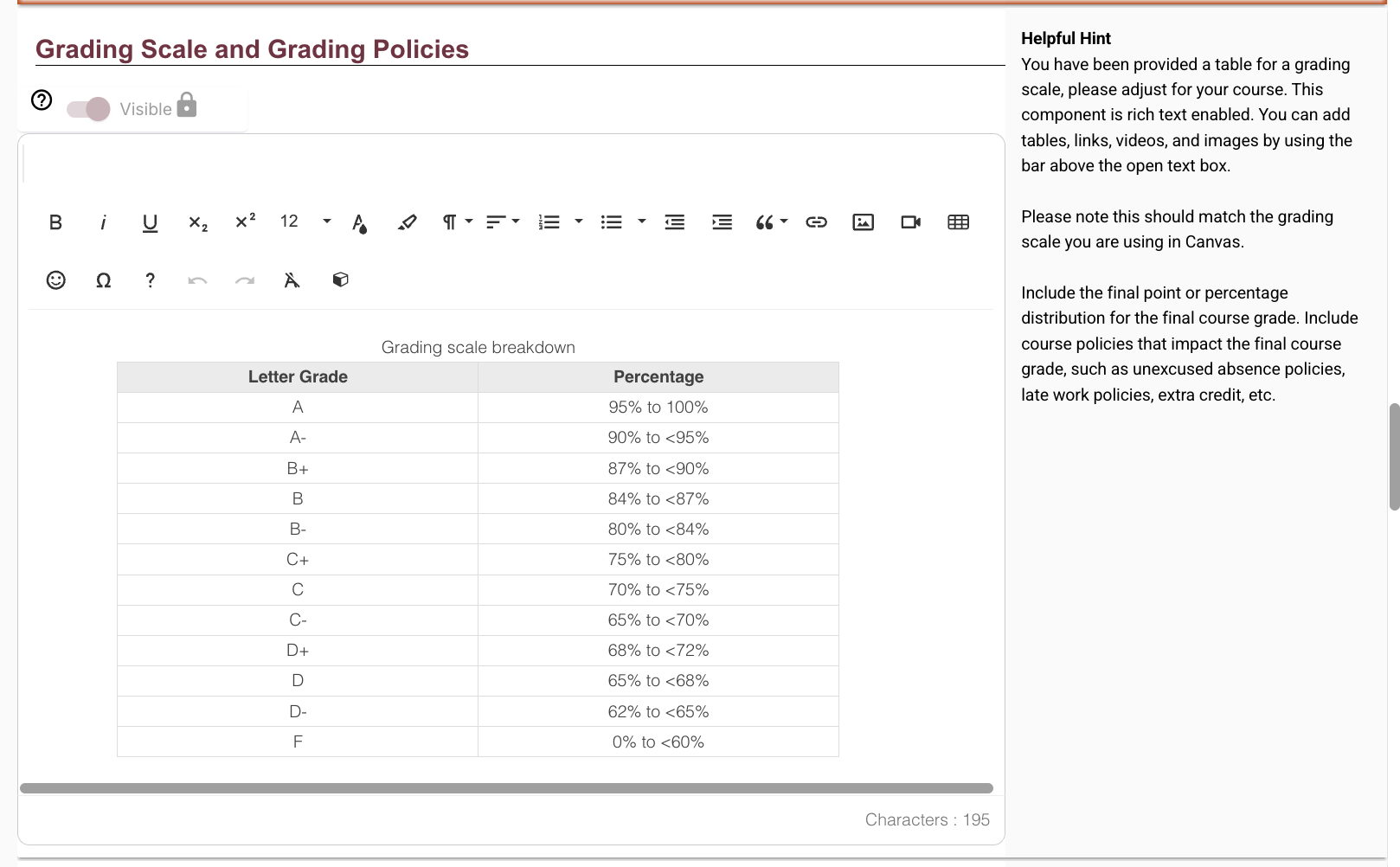
Grading Scale and Grading Policies
You may use the provided table to match the grading scale used in your course. Please note this should match the grading scale you are using in Canvas.
University Policies
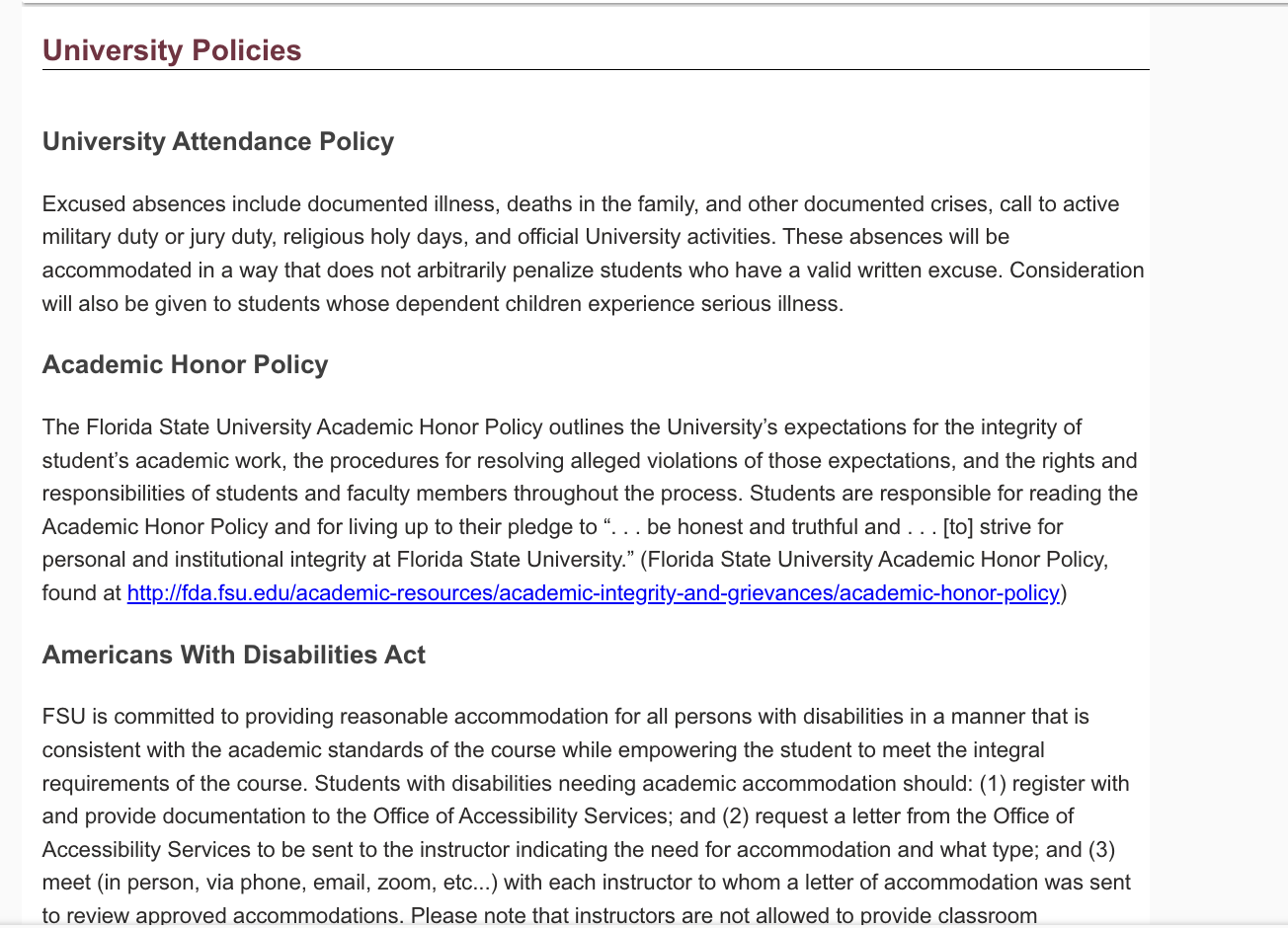
This will auto-populate with mandated syllabi policies for Florida State University, including the University Attendance Policy, the Academic Honor Policy, the Americans with Disabilities Act, Academic Success, as well as a list of confidential campus resources, including the Victim Advocate Program, Counseling and Psychological Services, and University Health Services. This section cannot be edited or removed.
Syllabus Change Policy
This highlights to students that syllabi are subject to change with advance notice.

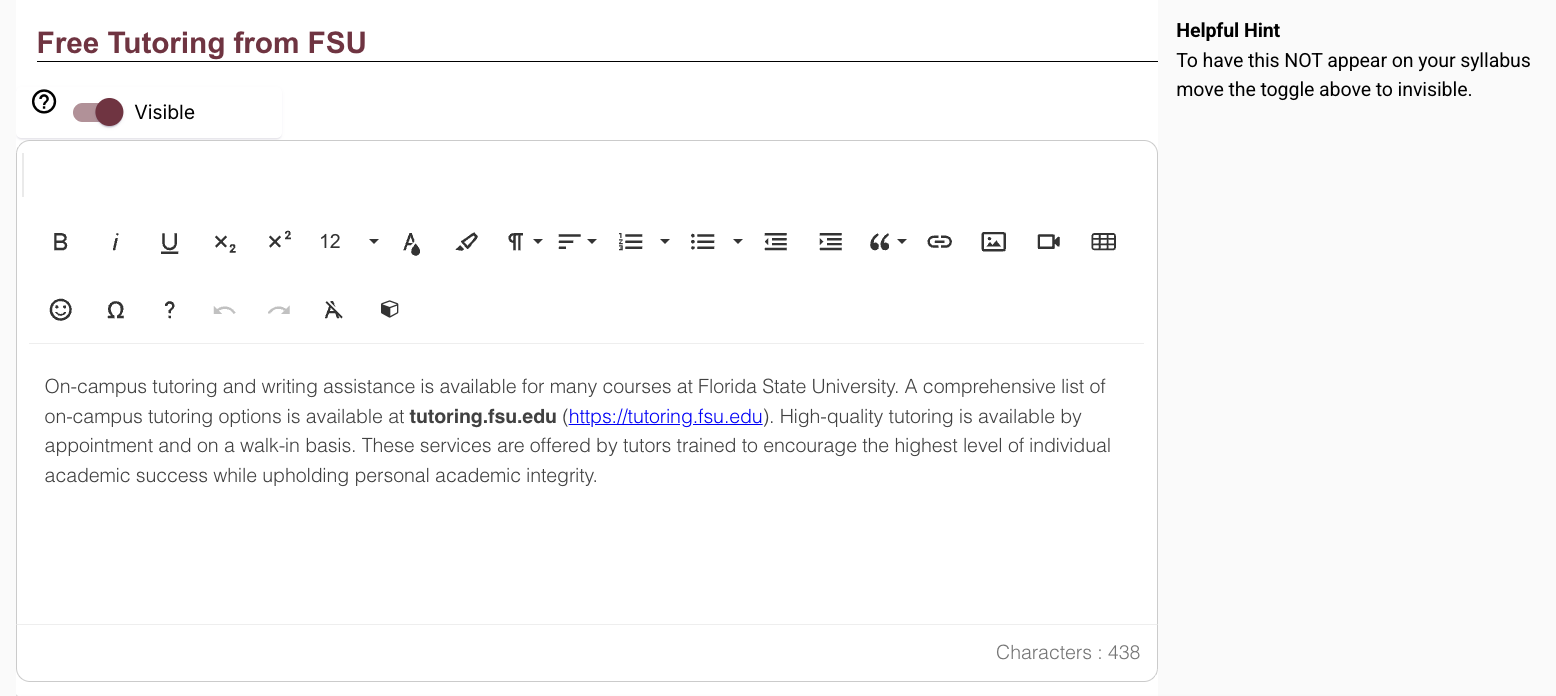
Free Tutoring from FSU
This will auto-populate with free on-campus tutoring resources for students. Instructors can remove this by flipping the toggle to 'invisible'.
Proctored Examinations
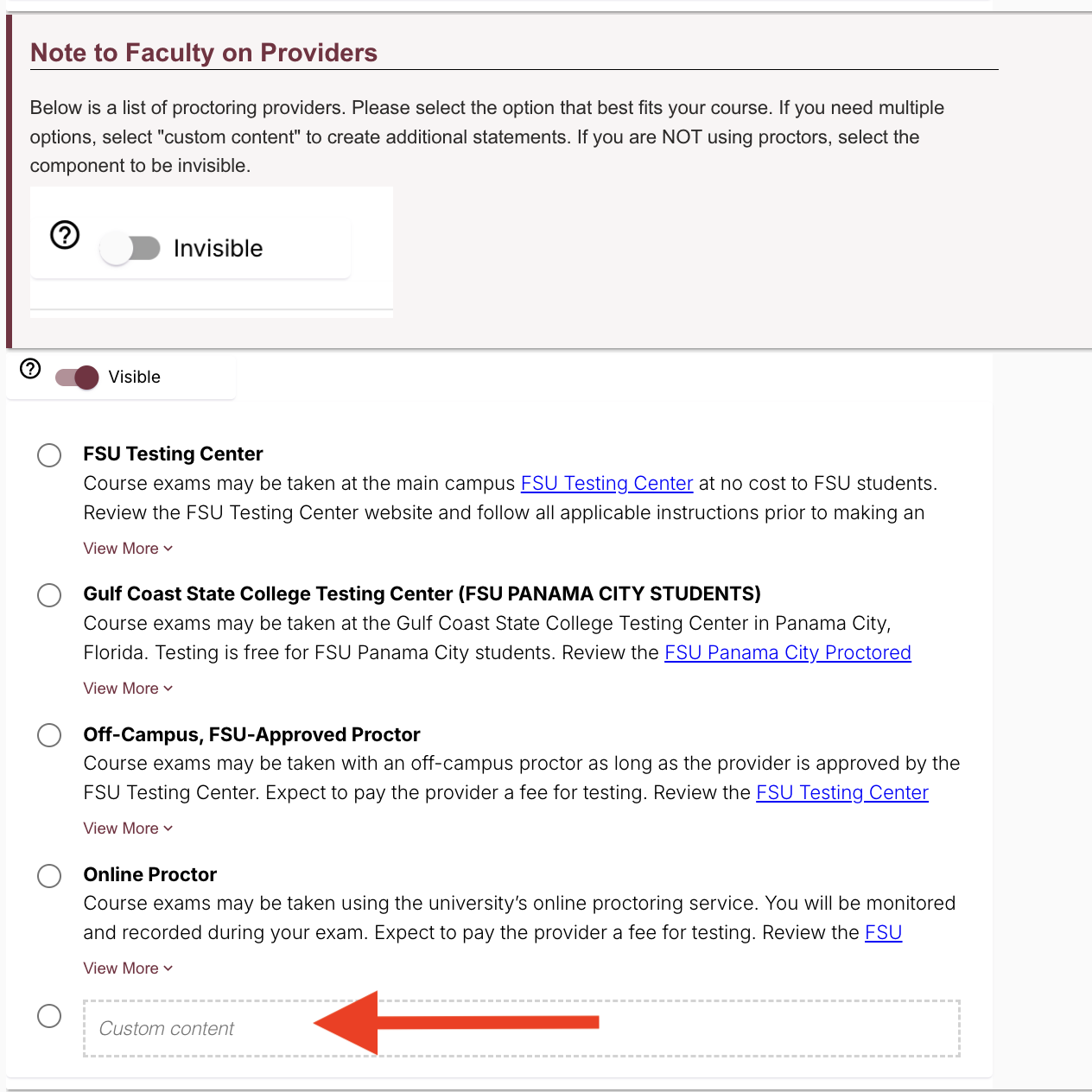
If your course includes proctored exams, keep this marked visible. If not, please toggle this component to invisible. If your course includes proctored examinations, select the option from the provided list that best fits your course. If you need multiple options, use Custom Content to create additional statements. If you are not using proctors, toggle this component to be invisible.
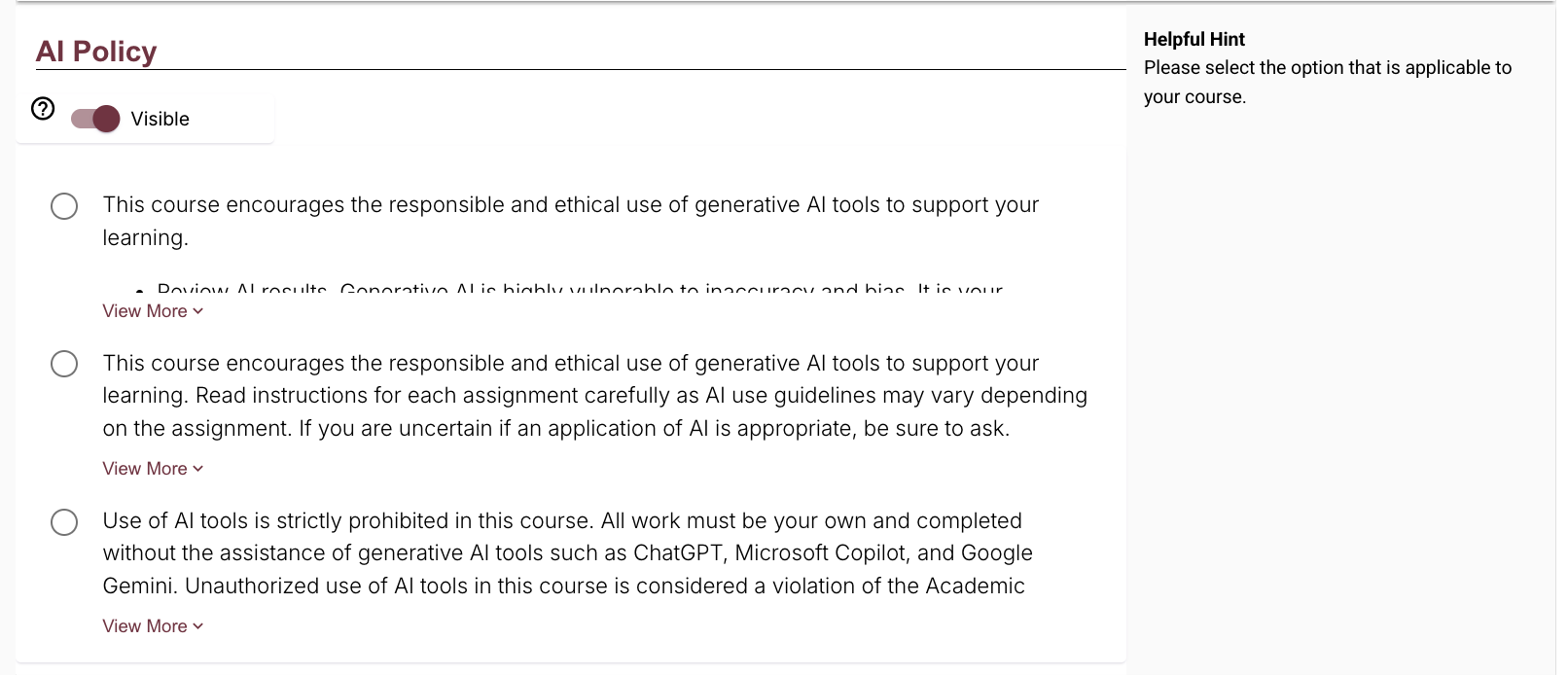
AI Policy
Please select the option that best applies to your course. Instructors can also toggle this component to be invisible.
Canvas Support Statement
This section points students to FSU Canvas Support and cannot be edited or removed.
Submission and Attestation
Once the above components are complete, instructors will then check off the attestation agreement. This statement confirms that the syllabus is accurate and complete, and that you, as the instructor, have verified that you have reviewed all instructional materials for appropriateness before presenting or assigning them to students.

Finally, instructors may submit, preview, or close the window. The syllabus cannot be submitted until all required components and the attestation agreement are completed.












