


The Office of Digital Learning's Technical Support group is dedicated to helping FSU students with their online learning needs. Contact us anytime you have a question, a problem, or any feedback. We are here to help you have the smoothest experience possible!
If you're having trouble with Canvas, you don't necessarily need to contact your instructor for simple technical issues. If it is something more serious, our ODL Technical Support specialists will let you know when it is important to contact your instructor.
Logging in to FSU's Canvas
To access Canvas, simply log in to my.fsu.edu and then click the Canvas icon under "myFSU Links." When you're done working in Canvas, make sure to log out of both Canvas and myFSU.
Or you may access Canvas directly at canvas.fsu.edu and log in with your FSUID and password.
Setting the Correct Time Zone
To avoid any confusion about due dates, we recommend that you make sure your Canvas account is set to the correct time zone for the region you are located. Having the wrong time zone in your user settings can cause significant confusion, especially if you are a Distance Learning student.
Changing Your Name in Canvas
You can easily change your name in both Canvas and other FSU systems by updating your info in Student Central. While it is possible to change your name through Canvas, that change only affects our Canvas system. The name change won't carry over to any other FSU system, like myFSU, FSU webmail, registrar records, etc., so changing your name in Canvas only could cause your instructors some confusion when they upload your grades from Canvas to the Registrar at the end of each semester.
Viewing Courses in Canvas
The following conditions must be met in order for you to see your course in Canvas:
- You must have registered for the class in myFSU. Canvas syncs up with your class schedule Sunday through Friday every few hours between 5 AM and 9 PM. Learn more about how course enrollments and access work in Canvas.
- If you have used Canvas's "favorites" option to customize which courses display on your Canvas Dashboard, then you will need to go to Courses > All Courses to access your course. You will also need to adjust your "favorite" courses each term if you are customizing your Dashboard. Learn more about using the dashboard as a student.
- Your instructor must have set up and published a Canvas course site for your section. Some instructors may choose not to use Canvas, so if you cannot find your course in Canvas, check with your instructor to find out whether they are planning to use Canvas to share course materials. However, make sure to check your Courses > All Courses page to see if you can access your course site that way.
- The instructor must have published the Canvas course to you and your classmates. All courses in Canvas begin as unpublished.
Troubleshooting 'Access Denied' Errors
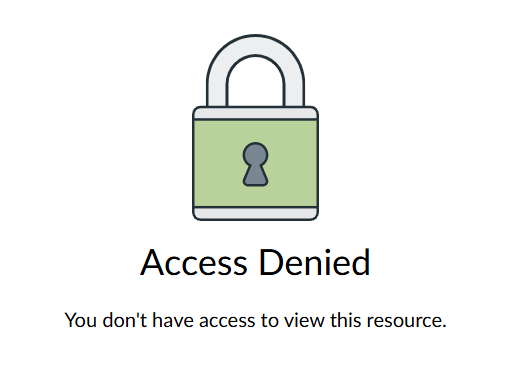
If you are trying to access a file, page, or any other item in your Canvas course and you run into the error message below, don't panic! This message usually indicates that your instructor has not published that item, so your classmates are also unable to access it. Please contact your instructor to let them know that you are unable to access the item.
Contacting ODL Tech Support
Our office is open from 8 AM to 5 PM (EST), Monday through Friday, except during FSU holidays. In most cases, we respond within 2 hours.
- Create a support ticket. If you're not in a hurry, this is our preferred way to contact us. Click the "Submit Ticket" button at the top-right corner of this website, or type "https://support.canvas.fsu.edu/new" in your browser at any time.
OR
You can submit a support ticket from inside Canvas! Simply click the Help icon in the garnet global navigation menu, then select the Submit a Canvas Ticket link.

You can also access our Canvas Support Center website (FSU Canvas Support Center link in image above), Canvas's video guide, and several other helpful resources from the Help menu in Canvas. - Email [email protected]. Emails are super convenient. Just make sure to use your University email account for any account- or course-related matters.
- Call (850) 644-8004. If you need a response in less than two hours, this is the way to do it. Don't worry, you won't have to talk to a machine. We take the "real-people, real-support" approach.
Adjusting Notification Settings in Canvas
See our Canvas Notification Settings Guide. If you are using an email address other than your @fsu.edu address to respond to emails, then it is important to add that email address to your Canvas account. If you do not add that email address to your Canvas account, then you will not be able to successfully reply to a Canvas email notification using that account. This means that your instructor and fellow students will not receive your response unless you add this email address to your Canvas account.
Pro tip: Check your official FSU webmail inbox regularly to avoid missing important university announcements and other communications. Canvas messaging is great, but it does not completely replace FSU's email system.
Finding Instructor Feedback in Grades
You can access your instructor's feedback on your assignment by clicking into the Canvas course and then clicking the Grades link on the course navigation menu. On your Grades page, you will see an icon that looks like two speech bubbles appear to the right of your grade for an assignment. Click on this icon to access your instructor's feedback. Alternatively, you can click on the assignment name itself to view both your assignment submission and your instructor's feedback side-by-side.

Confirming Assignment Submissions
Canvas recently added a feature that displays a confetti celebration animation upon successful assignment submission. This confetti animation will only display for regular Canvas assignments and Canvas assignments that utilize the Turnitin Direct integration. It will not display when submitting a Canvas Quiz or Exam, posting to a Canvas Discussion, or submitting an assignment that utilizes the old Turnitin LTI integration.
Keep in mind: You can opt out of this feature if you don't like it, but keeping it enabled may help ensure that you've submitted certain assignments correctly.
You can also use the steps below to ensure that you have successfully submitted your assignment.
For Regular Canvas Assignments
- Click into the course site that contains this assignment.
- Navigate to the assignment submission link.
You will need to click on either Modules or Assignments on the course navigation menu. If the assignment submission link is no longer accessible on either of these pages, click on Grades and follow these instructions instead to locate your submitted assignment.

- Click on the assignment submission link.
- Depending on the device you are using, you will see the "Turned in!" message with clickable links on either the right-hand side of the assignment's submission page or at the bottom of the page. This message displays the date and time that you submitted your assignment. You can double-check that you submitted the correct file by clicking the download link here.

For Turnitin Direct assignments
See Students: How to submit Turnitin Direct assignments. We strongly recommend downloading your Turnitin digital submission receipt for every Turnitin LTI assignment you submit.
Technical Issues During Quizzes
The first thing to do is not to panic! Take a deep breath. Often, if you lose access to a quiz or exam while you're taking it, logging out of Canvas and logging back in again to try to regain access works, and you get back in with no problem. However, if the quiz or exam is timed, the timer will keep running while you try to get back into it.
If you are unable to get back into the quiz or exam within a few minutes, immediately email your instructor to let them know what's happening and that you need help getting back in. Copy [email protected] on this email. ODL Technical Support cannot give you access to any assignment without your instructor's permission. If your instructor is not able to grant you access to the quiz/exam immediately, and they respond to your message asking our Helpdesk staff to assist you, we will be able to help you regain access.
Weighted Group Totals Over 100%
If your instructor uses a weighted grading scheme and also implements extra credit opportunities, you may see that your weighted grade total reads 200%. Please see the article Students: Why is my weighted group total out of 200% instead of 100%? for more information.
Tip: Missing Submit Button
Has the class started yet? Most instructors don't let their students submit anything until 10 days before the semester begins; some don't allow submissions until the first day of the semester.
Or, try another web browser. Some browsers seem to present more display issues, so we recommend using Google Chrome or Firefox.
Tip: Typing Assignments and Posts
If you are typing in a long assignment or discussion post, always type it in a Word document or notepad and save your changes periodically. Then, copy that text and paste it into the submission text box in Canvas. This will ensure you don't lose your work due to network connectivity or page-refresh issues.
Tip: Using the To-Do Calendar
Do not rely on the To Do calendar in Canvas to tell you everything you need to do - not everything is listed there. Make sure to check each course for information and refer to any syllabus and course schedule that your instructor provides. Also, remember to check your official FSU webmail inbox regularly to make sure you don't miss important course communications that may not be sent through Canvas.
Tip: Canvas Mobile App
Canvas's mobile app can help you stay up-to-date and complete some tasks in Canvas on the go! However, you can't do everything in the mobile app. If you can't access something in the mobile app, then use a computer or try the internet browser on your phone instead. We don't recommend taking a high-stakes exam or completing other significant assignments on the mobile app.
Tip: Checking FSU Webmail
Be sure to check your official FSU webmail inbox regularly to avoid missing important university announcements and other communications. Canvas messaging is great, but it does not completely replace FSU's email system.











